SOLISCADA V7.70.00.01 is now available. Important Notice: License Key reactivation is required after updating. Learn what's new and update now→
 SOLISCADA at a Glance
 Architecture
 Why Choose Us
 Essential Functionalities
 Beyond the Basics
 System Recommendations
 FAQs
FAQs Oil & Gas
 Water Industry
 Food & Pharmaceuticals
 Marine
 Mining & Metal
 Manufacturing
 Electric Utilities
 Municipal Industry
Overview
SOLISCADA supports installing CSReport (Web reporting software) to use Web reports, and installing WebServer (Web publishing software) to use the Web client. Users can log in to the Web client through a browser to view configured process-diagram screens and quickly access Web reports.
Download (software): https://www.soliscada.com/download
The network architecture for SOLISCADA and the above add-on modules is shown below. The architecture and usage for the Web report follow the same pattern as Web publishing.
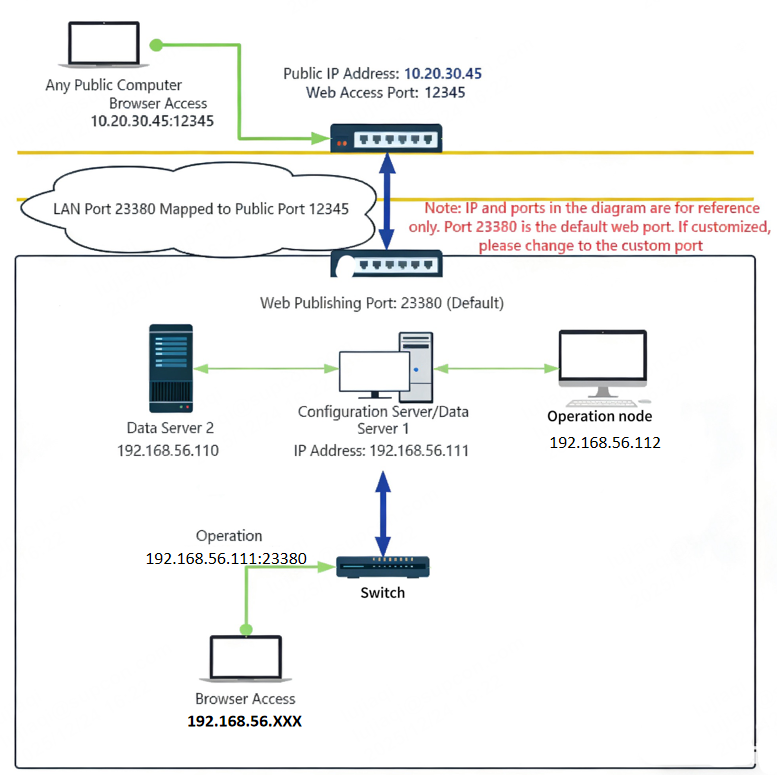
Note: There are many ways to implement port mapping between public and private networks; please research and choose the method that fits your environment. The diagram is for architecture guidance only.If you are not familiar with networking, consult a network professional.
The usage flow between SCADA and these add-on modules is shown below:
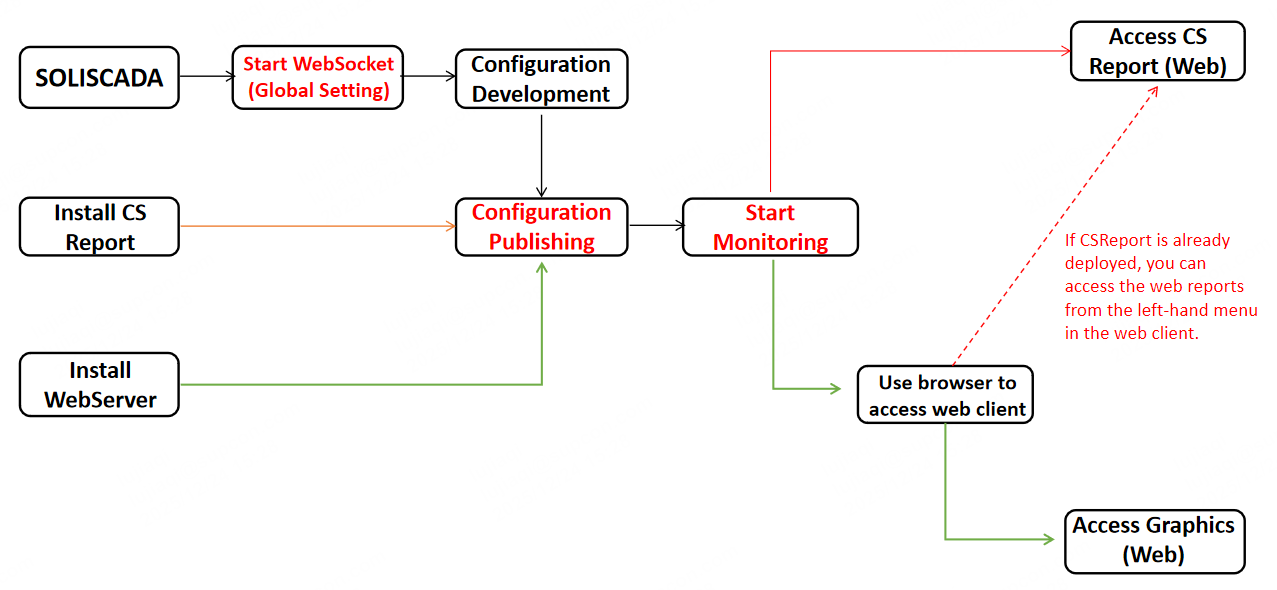
Software installation and usage guidance
The three programs including SOLICADA, CSReport (Web reports), and the Web Server must be deployed on the same machine.
Important: Before using the add-on modules, enable the WebSocket data service in SOLISCADA:
SOLISCADA -> Global Settings -> Startup Options → check Start WebSocket Data Service. Keep the IP and port at their default values.
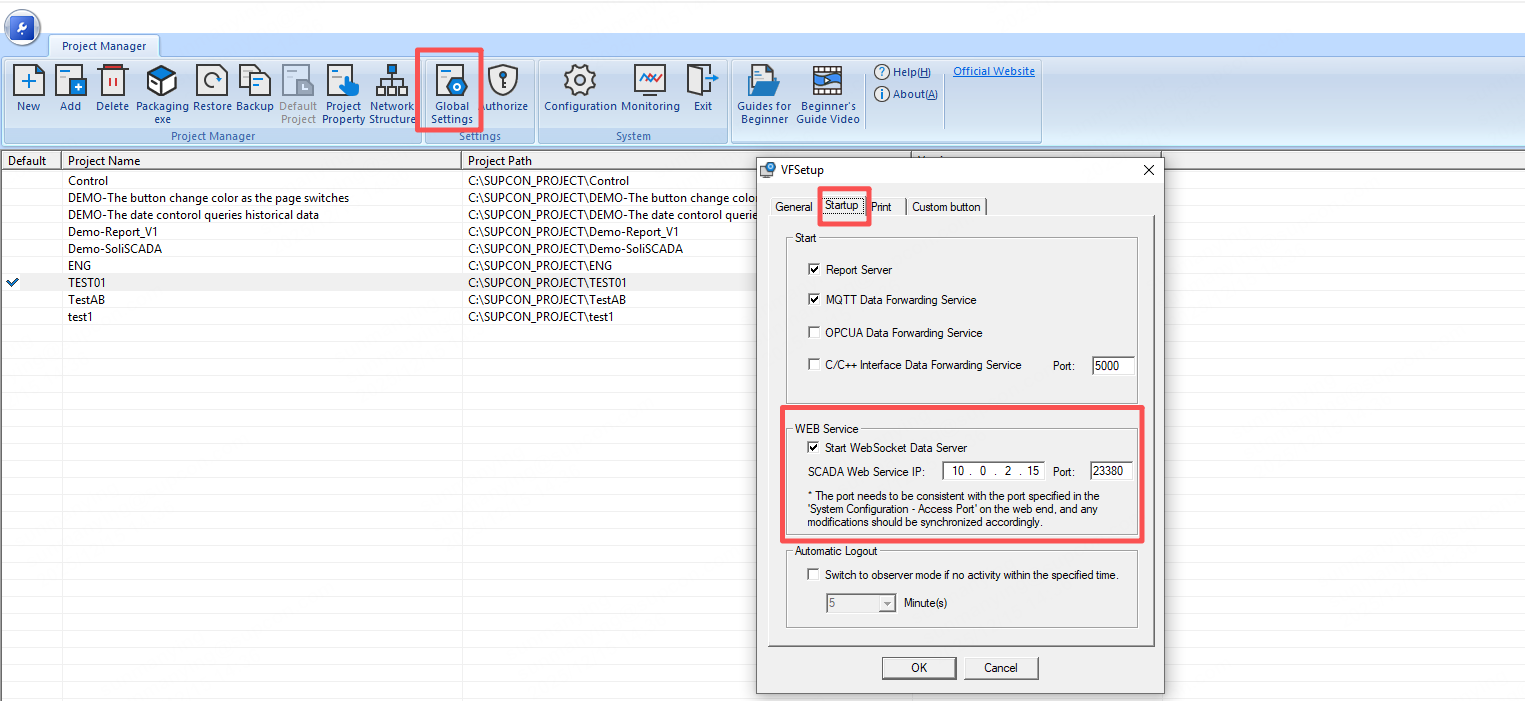
*The IP addresses shown below are examples. Use the actual IP addresses when configuring on site.*
CSReport (SOLISCADA Web reporting software)
1. Unzip the downloaded installer package; you will find the CSReport installer.

2. Right-click the installer and Run as administrator to enter the installation wizard.
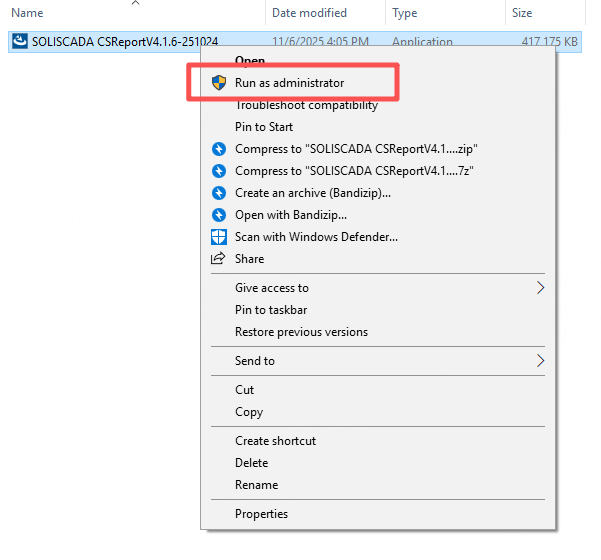
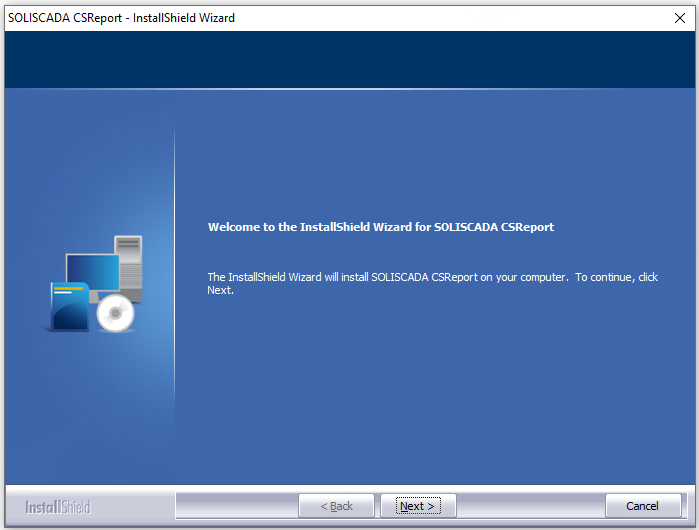
3. Follow the prompts and click Next, then click Install to start the installation.

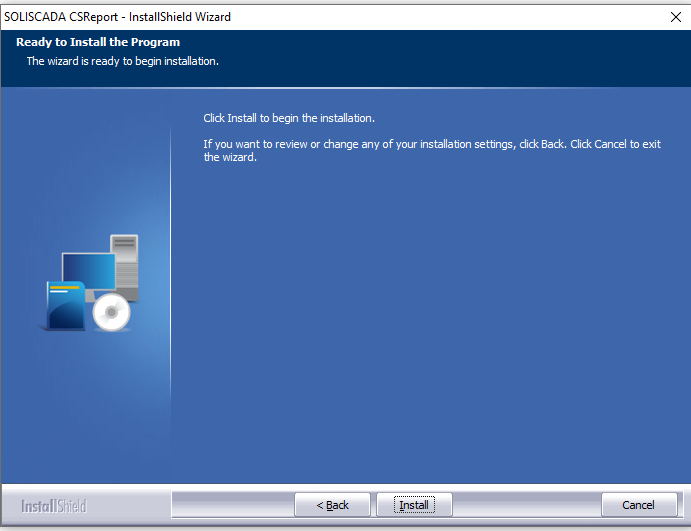
4. Wait for the installation to complete.


5. After installation completes, open a browser and enter IP:PORT to access the Web report. The default port is 18151.
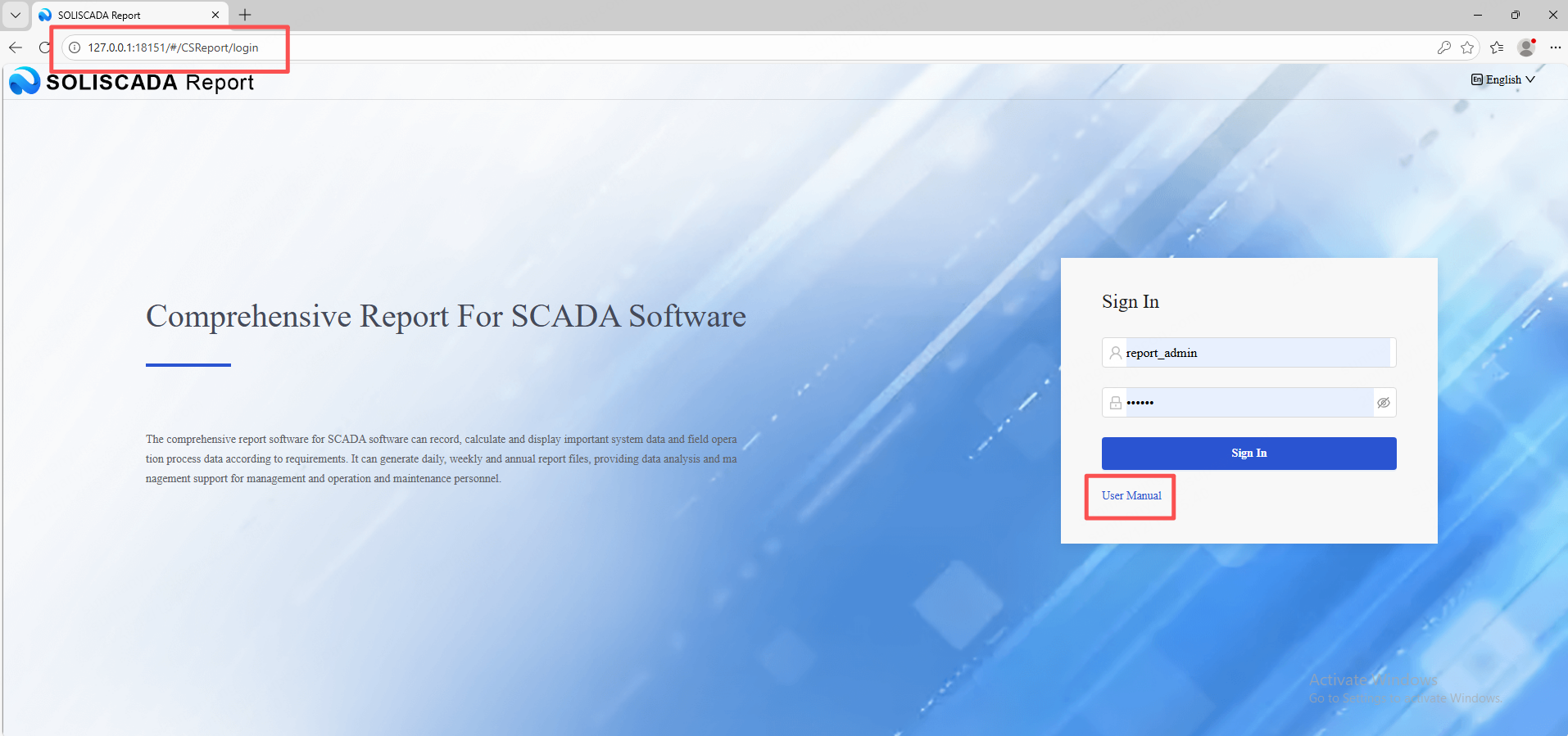

6. For configuration details and feature usage beyond this flow guide, please refer to the Report user manual (also included in the installer package). This document is a process guide and does not cover configuration details.
WebServer (Web publishing software / Web client)
1. Unzip the downloaded installer package to find the WebServer installer.

2. Right-click the installer and Run as administrator to enter the installation wizard.
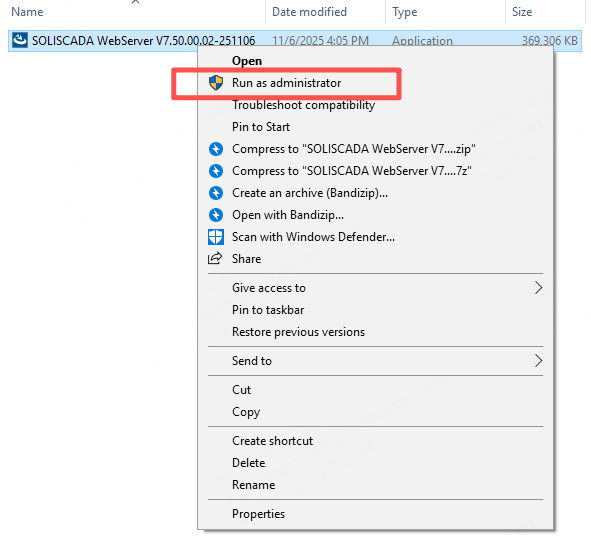
3. Follow the prompts and click Next, then click Install to start the installation.

4. After installation, open a browser and enter the SCADA Web server IP and port 23380 to access the Web client, for example:
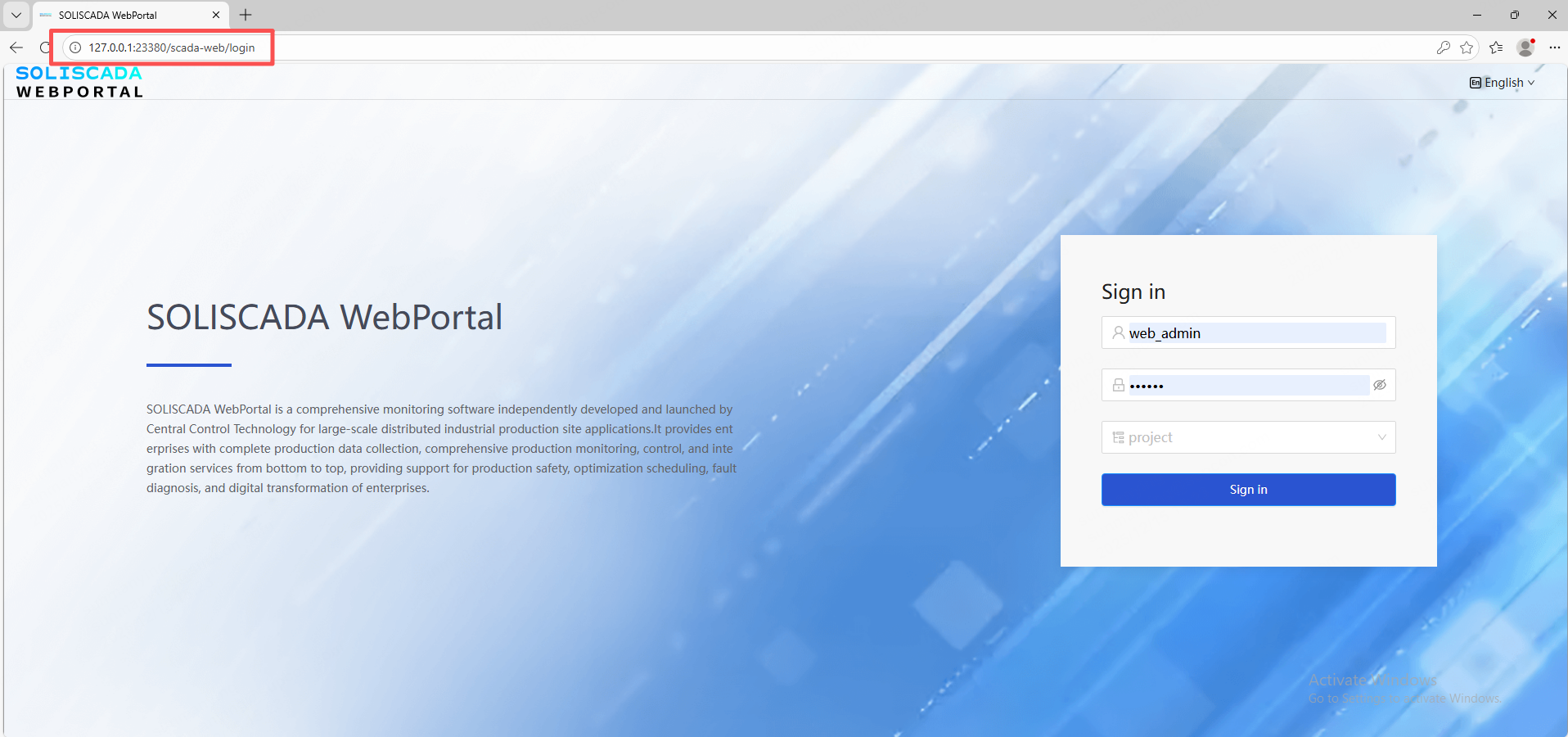
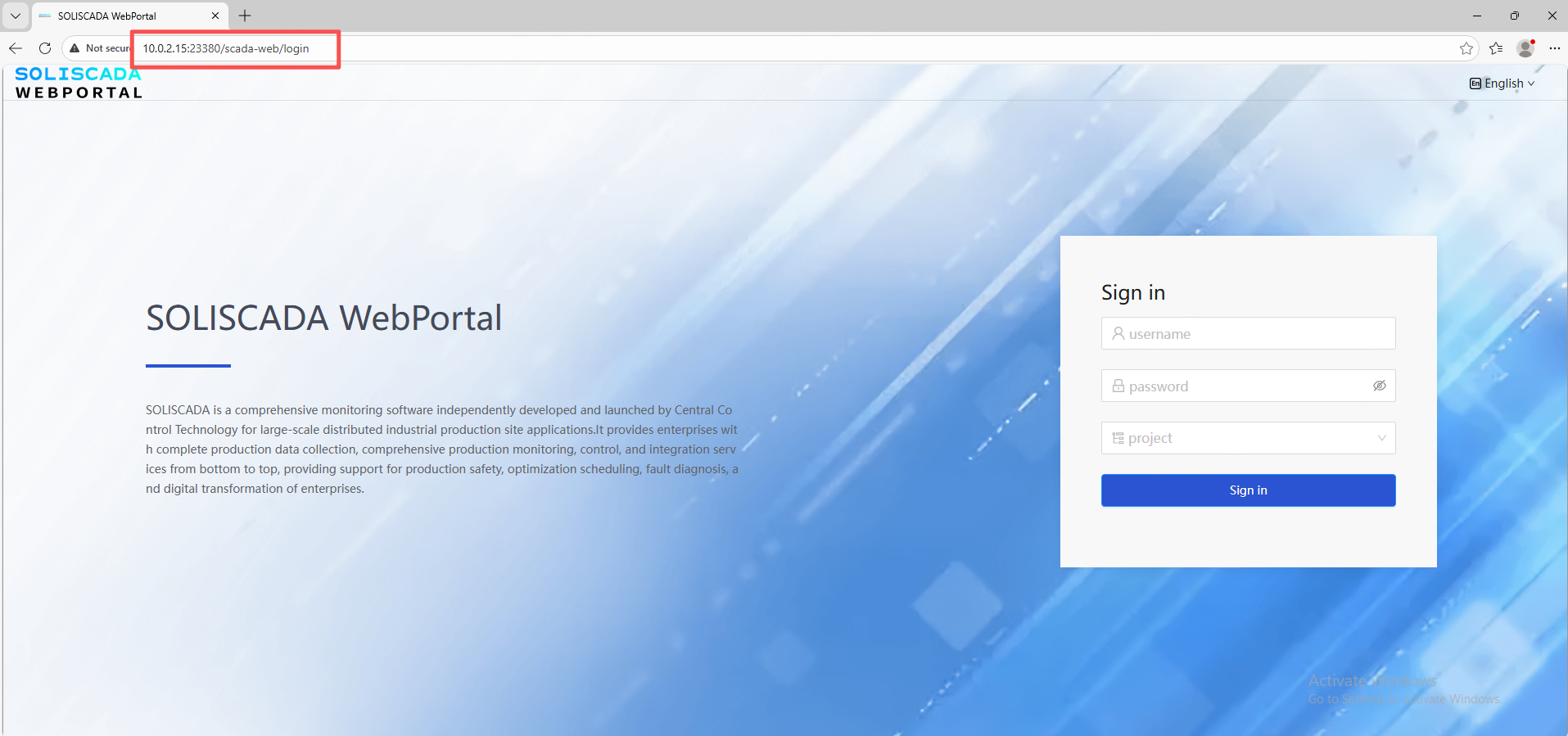
5. With SOLISCADA monitoring running, open the Web client and log in with the monitoring account credentials. The default monitoring account is:
Account: Admin
Password: admin
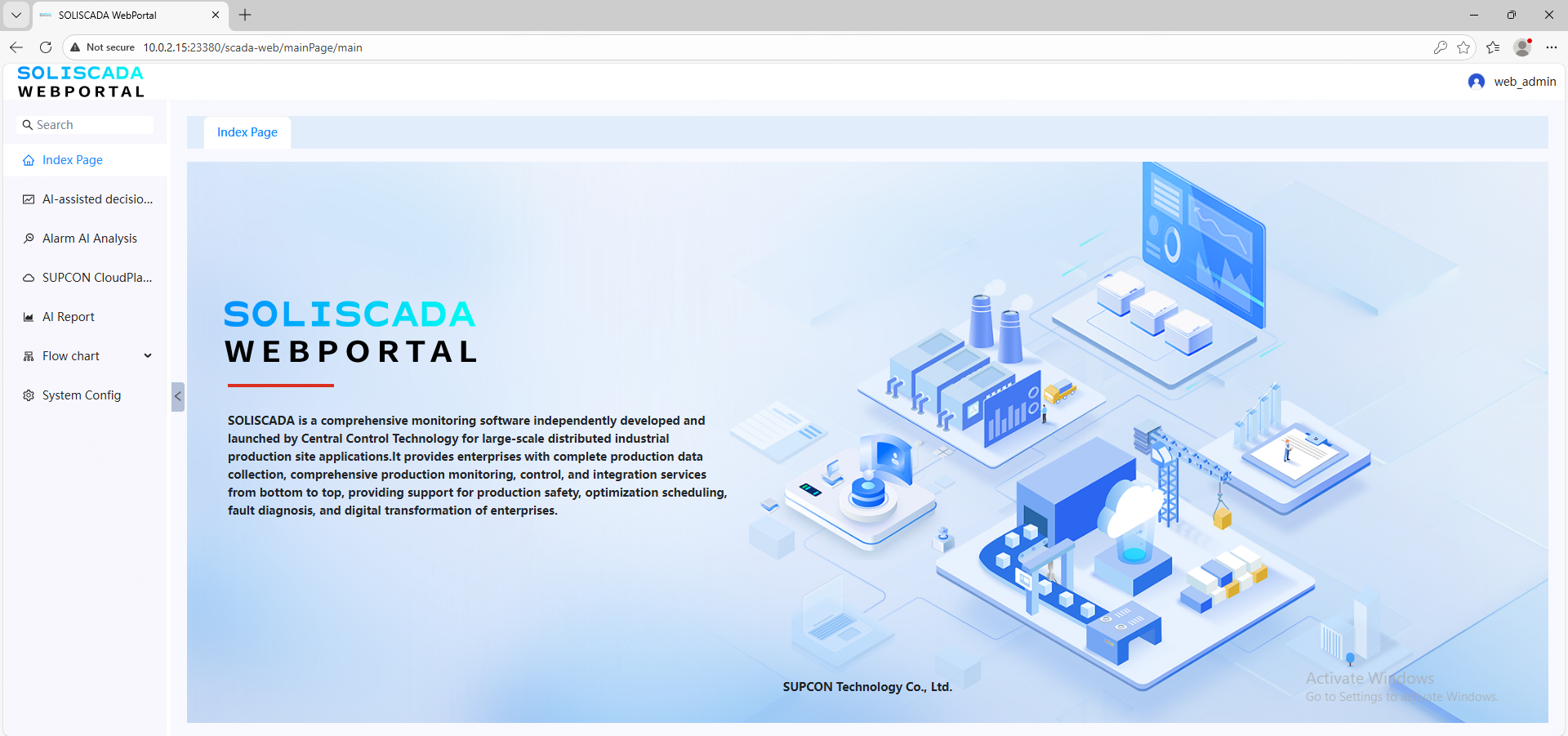
6. Click Reports on the left menu to quickly access Web reports.
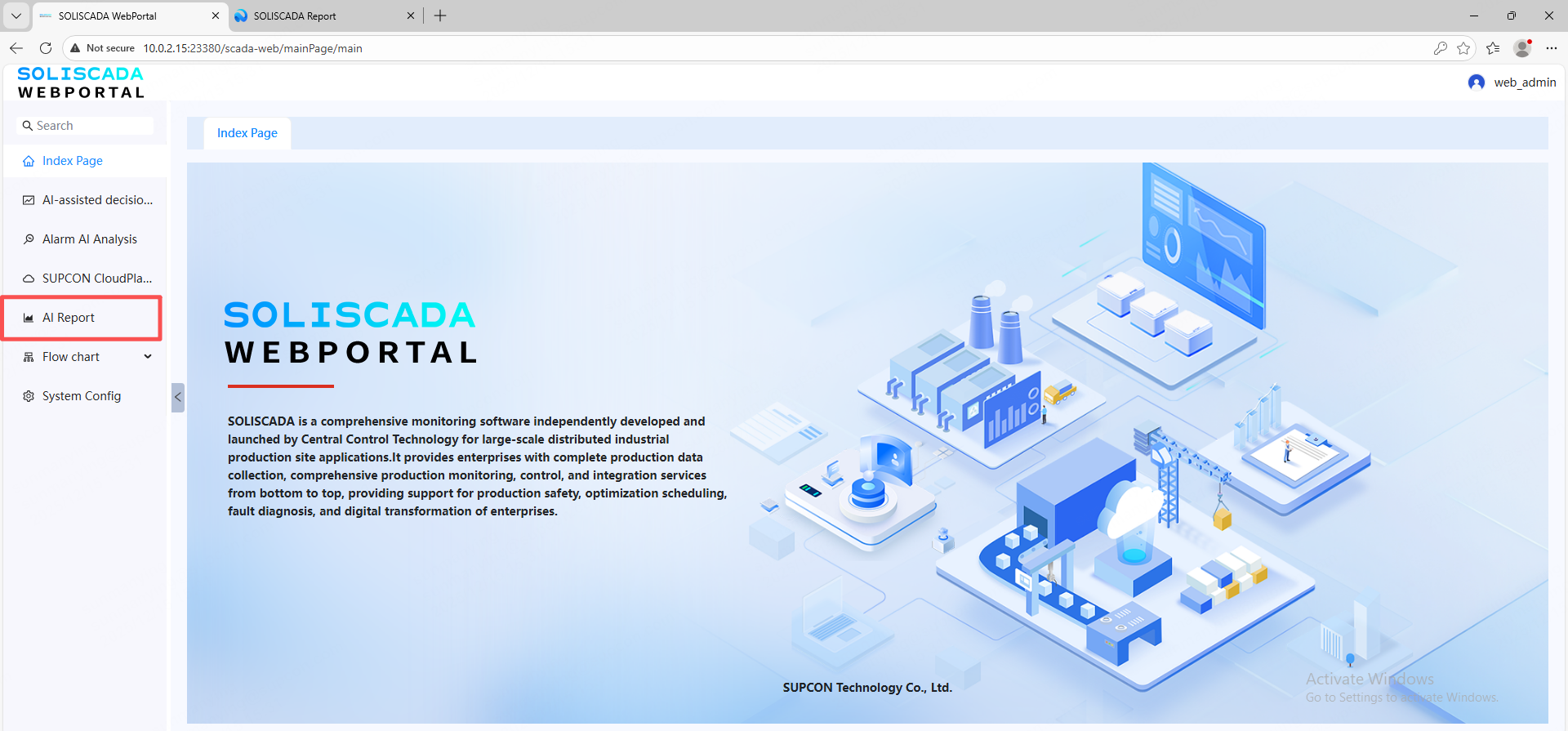
7. Click Flow Chart to browse available process diagrams.
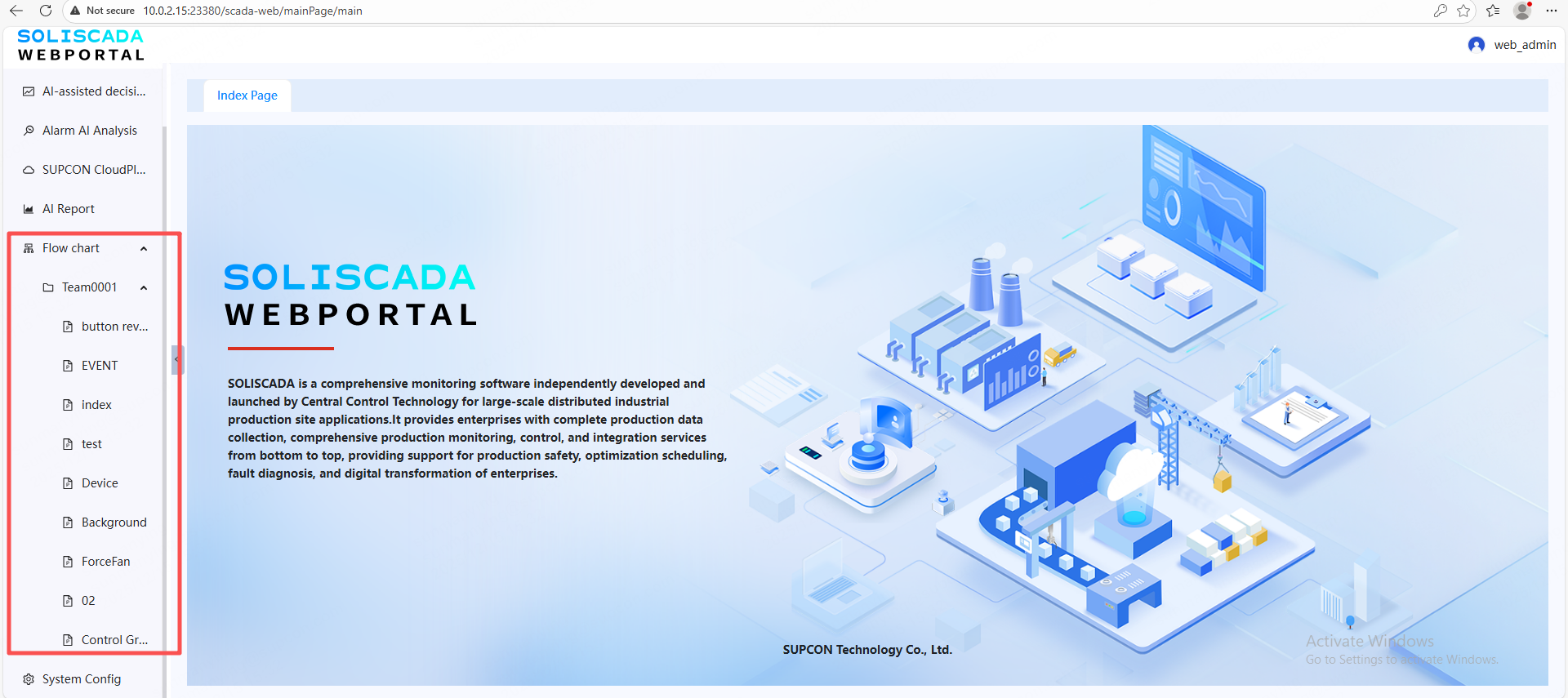
8. For detailed usage and configuration, please refer to our Web Client User Manual (also included in the installer package). This document is a process guide and does not go into configuration detail.