SOLISCADA V7.50.00.02 is now available. Faster graphics rendering, new Web Server controls, improved reporting and more. Learn what's new and update now→
 SOLISCADA at a Glance
 Architecture
 Why Choose Us
 Essential Functionalities
 Beyond the Basics
 System Recommendations
 FAQs
FAQs Oil & Gas
 Water Industry
 Food & Pharmaceuticals
 Marine
 Mining & Metal
 Manufacturing
 Electric Utilities
 Municipal Industry
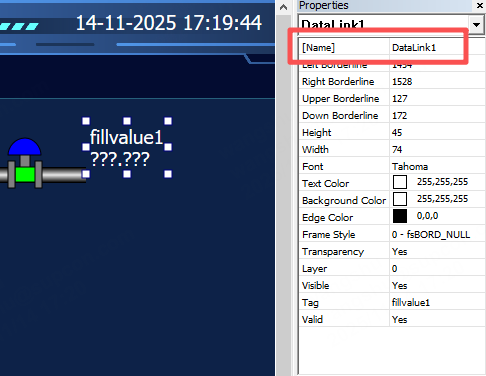
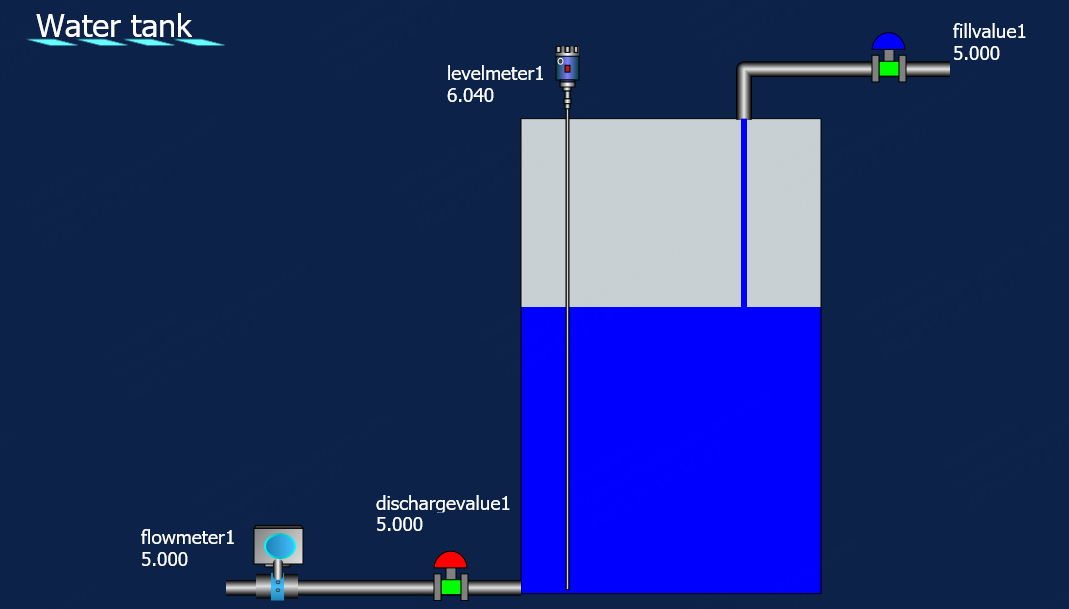
How SOLISCADA displays data and accepts input values on Graphics pages? SOLISCADA displays real-time data and allows write control of tags on Graphics screens by binding tags to a DataLink label control (previously called “Data Link”).
How to bind a tag?
1. On a Graphics page, drag a label control onto the canvas.
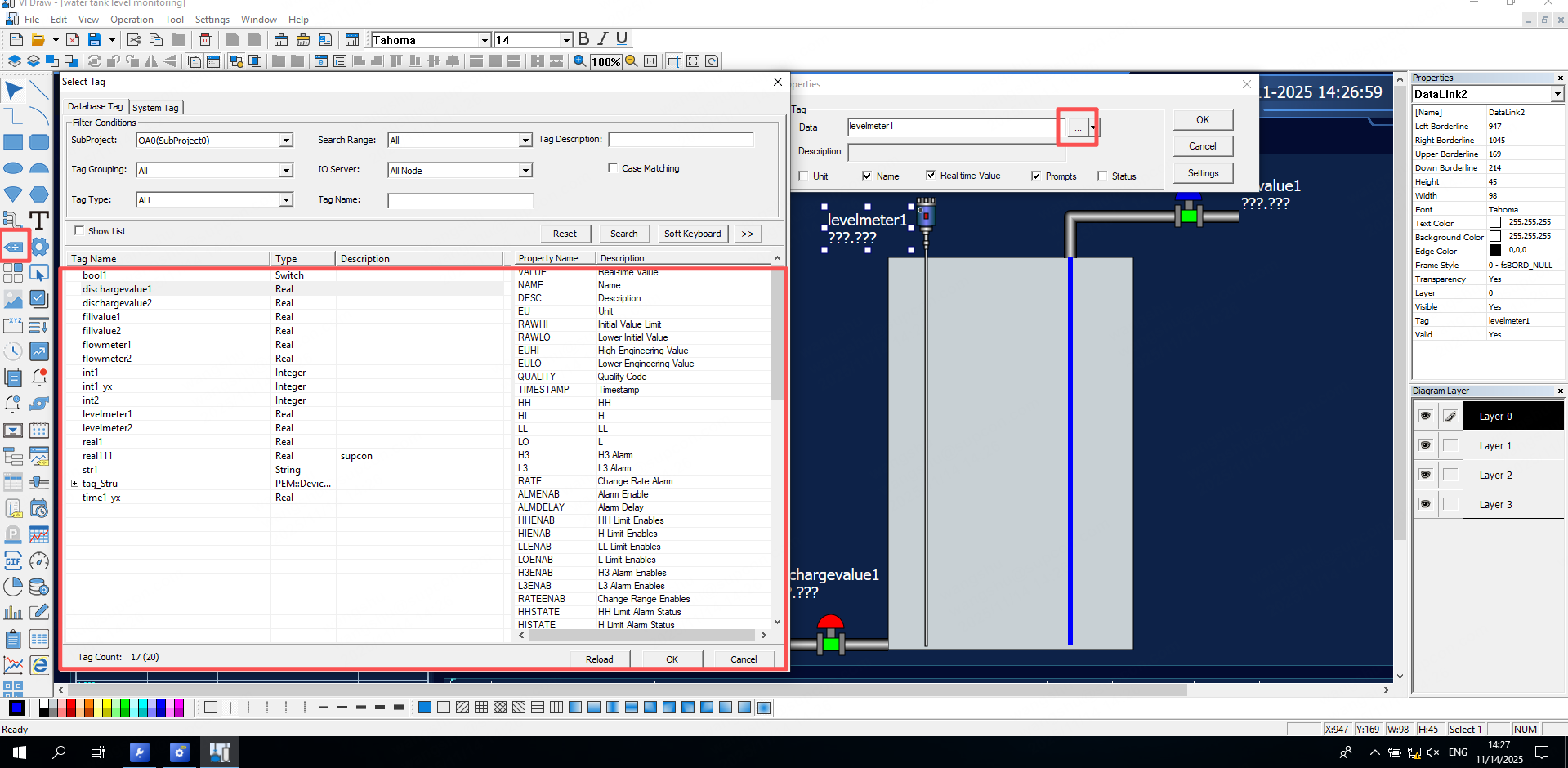
2. Choose the tag to bind to the label and set other properties (see list below).
3. Start online debugging or monitoring to view the tag’s real-time value.
How to set properties?
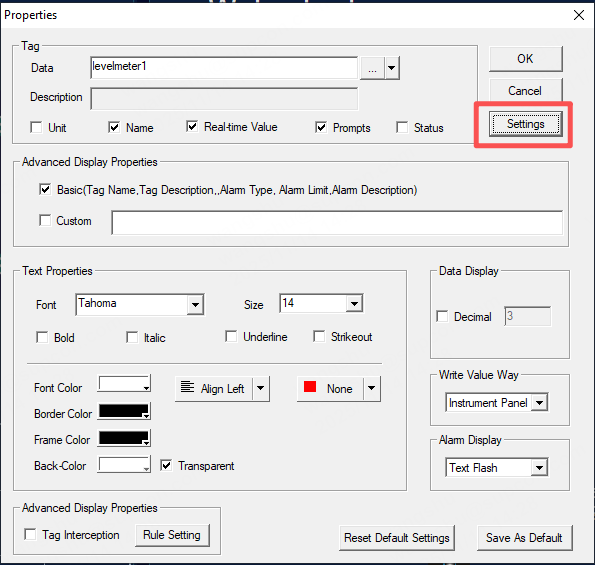
Common properties
Data source: the tag variables added in the database.
Tooltip / Info: displays basic tag information (tag name, tag description, etc.) or any custom text.
Text properties: font, font size, color, border, etc.
Number formatting: number of decimal places to display (effective for real/float types).
Alarm display: text blink, background blink, or no blink.
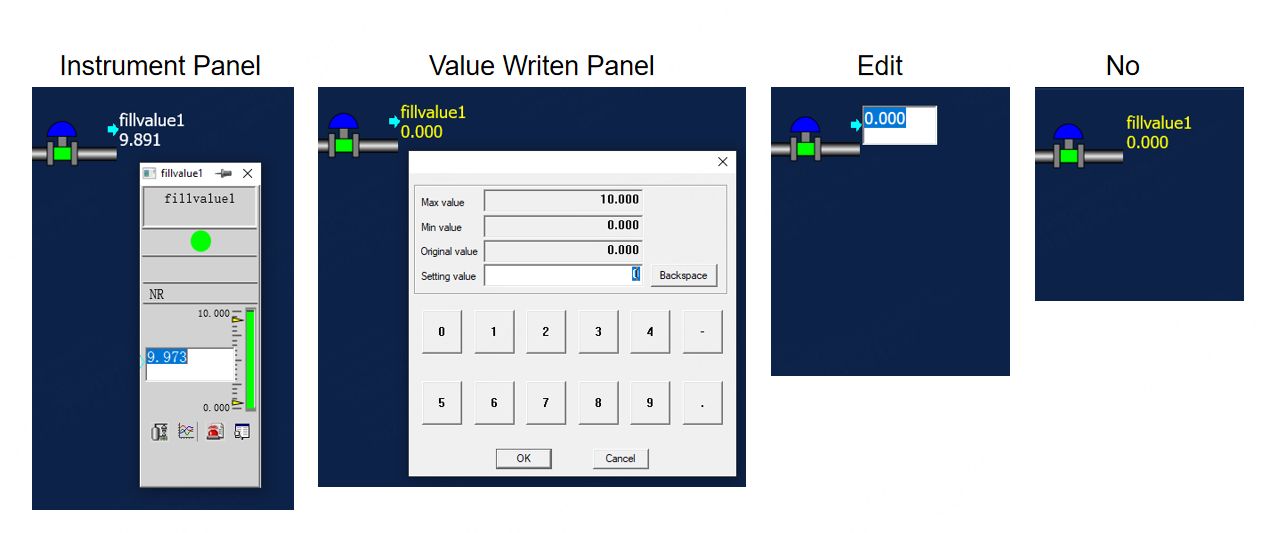
Write mode: Instrument panel, Value written panel, Edit, or No.
Tag extensions
1. Tag point fields (sub-properties)
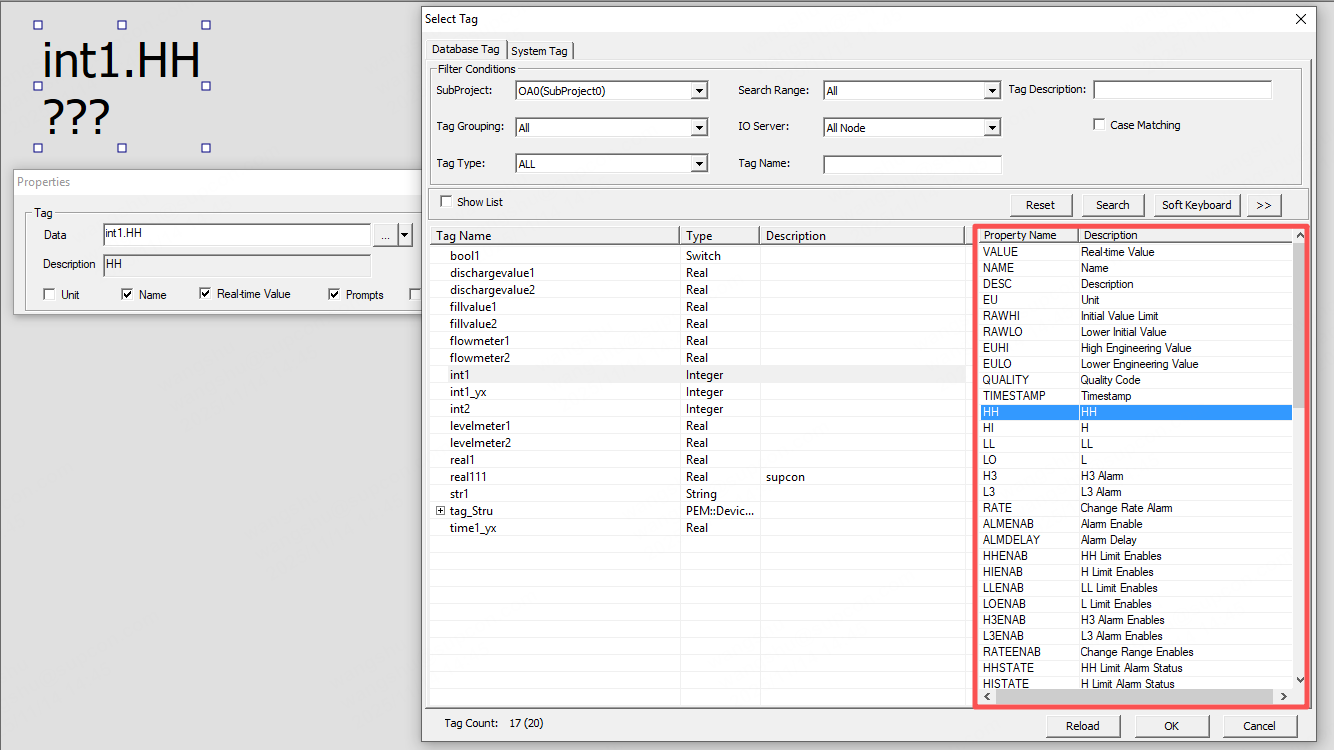
Tag point fields are sub-properties of a tag and can also be bound to labels so they appear on the Graphics and can be written to (note: some point fields are not writable).
In configuration screens that support tags and point fields, users may either select tags and point fields through the Tag Selector or manually enter a valid tag name/point field. Tag names and point fields are case-insensitive.
The format for referencing non-value point fields is:
TagName.AttributeName. For example, int1.HH indicates the High-High alarm limit (HH) of tag int1.
2. Tag expressions
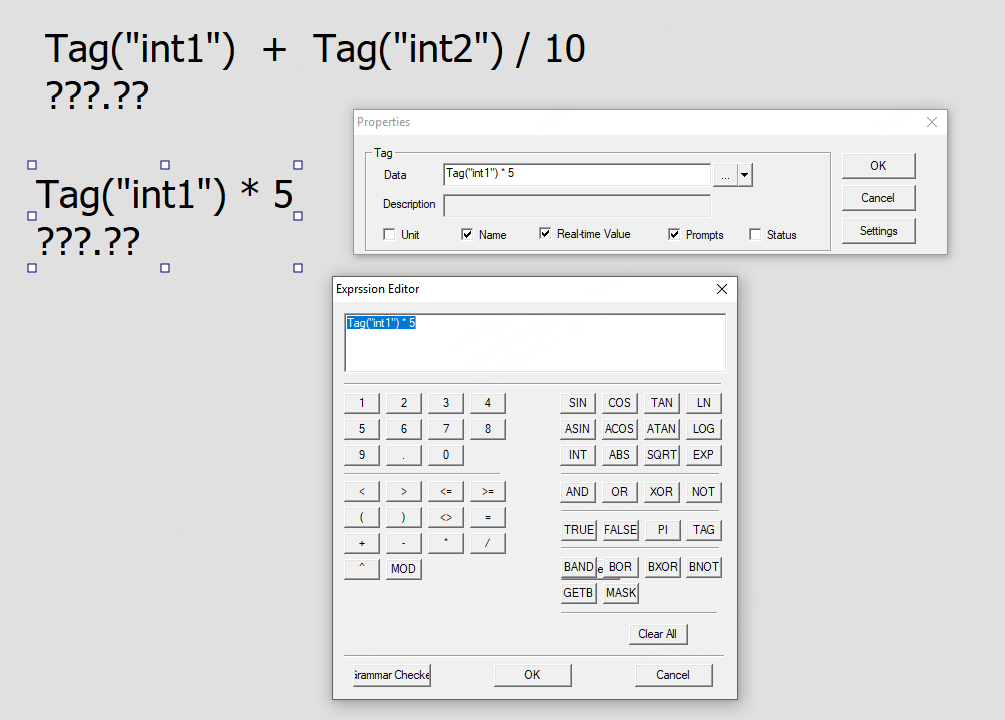
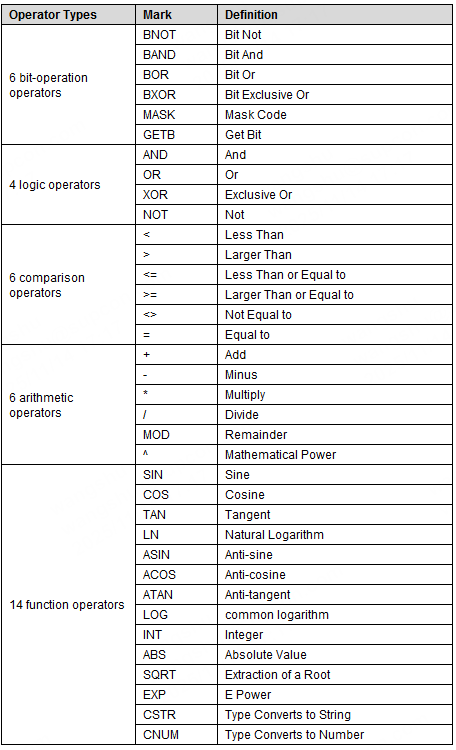
Label bindings can reference not only tag point fields but also expressions. You can use operators to perform simple calculations on tags or point fields.
There are two ways to write a tag name inside an expression:
a. Write the tag name directly (separated from other operators or items by spaces), e.g. int1 + 5
b. Use the function format: TAG("tagName"), e.g. TAG("int1") * 2
3. Batch replace associated tags
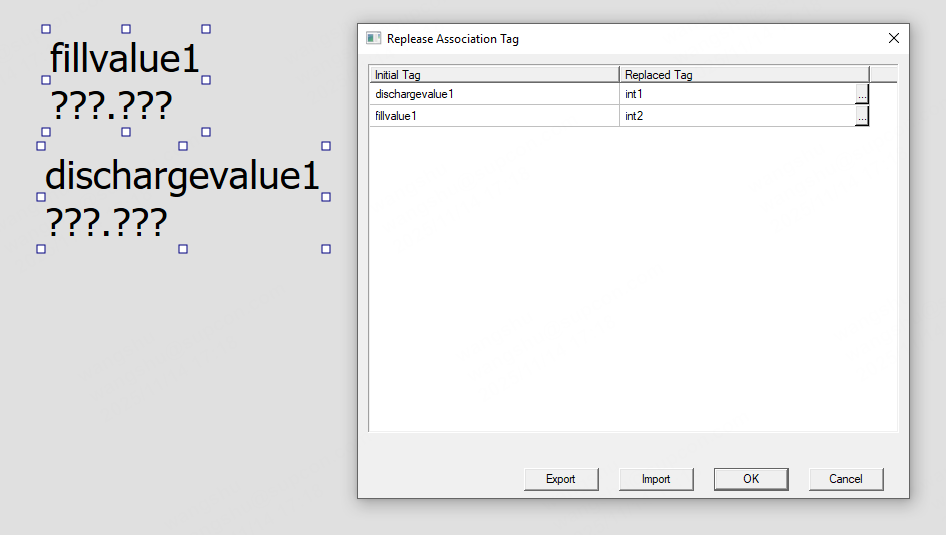
You can quickly replace tags associated with multiple label controls:
Hold Shift and select multiple label controls.
Right-click to quickly replace the associated tag for all selected labels.
You can replace tags either by manual selection or via import/export for bulk replacement.
Scripting extensions
1. Trigger on label control value change
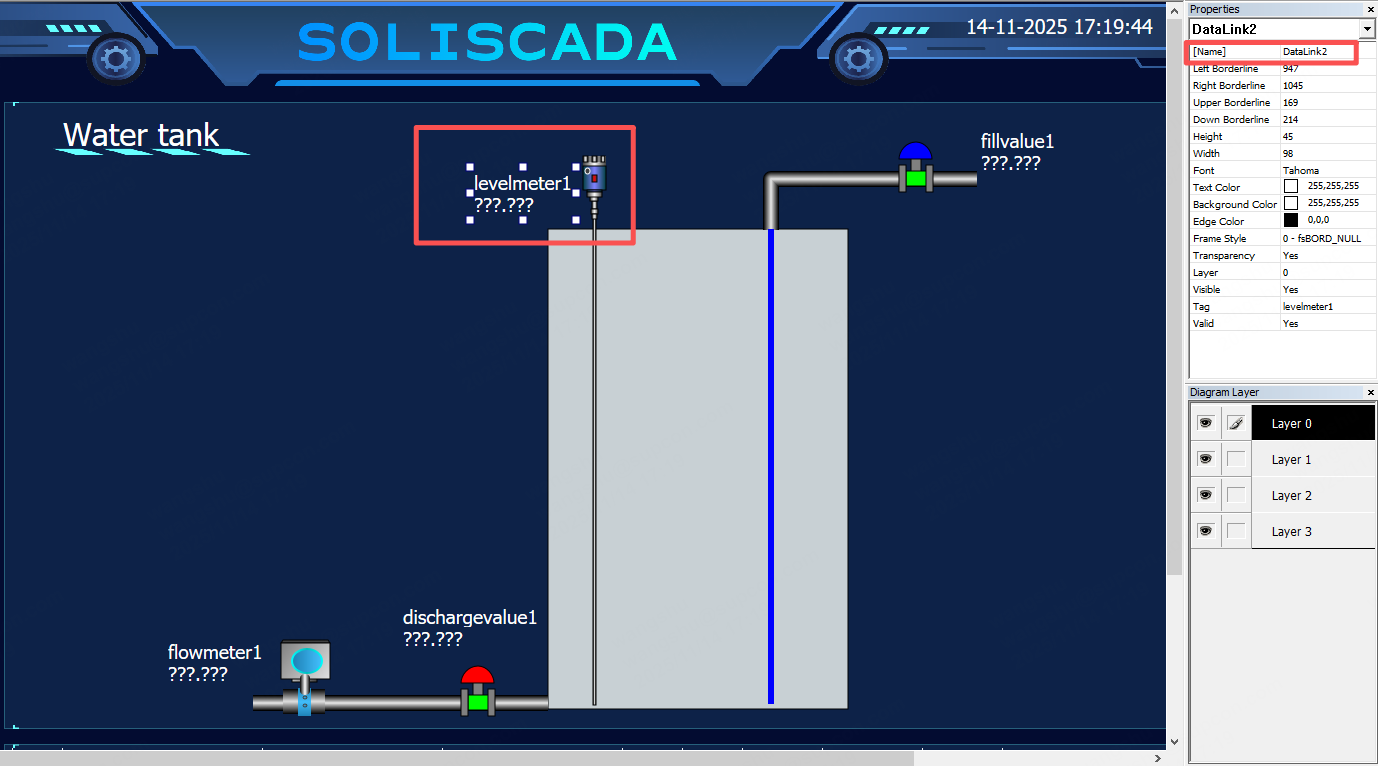
DataLink controls expose a value-change event. When a DataLink’s value changes, the corresponding function/script is executed.
Example: show a message when a tag value changes. Script:
Sub DataLink2_OnDataChange(val)
App.MsgBox "Level has changed!", "Level Status Notice", 0
End Sub
During configuration: Add DataLink2 to the Graphics page and bind it to a digital (binary) tag.
During monitoring: When the bound tag changes, the message box with title “Level Status Notice” and content “Level has changed!” will pop up.
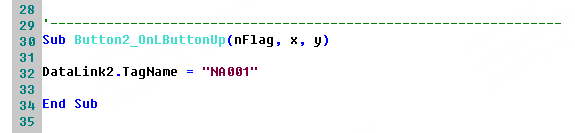
2. Replace associated tag by script
TagName
The TagName property/function is used to set the tag name of a graphic object.
Syntax
graphicObject.TagName = "tagName"
Example
Set the tag name of the DataLink control DataLink1 to NA001:
DataLink1.TagName = "NA001"