SOLISCADA V7.70.00.01 is now available. Important Notice: License Key reactivation is required after updating. Learn what's new and update now→
 SOLISCADA at a Glance
 Architecture
 Why Choose Us
 Essential Functionalities
 Beyond the Basics
 System Recommendations
 FAQs
FAQs Oil & Gas
 Water Industry
 Food & Pharmaceuticals
 Marine
 Mining & Metal
 Manufacturing
 Electric Utilities
 Municipal Industry
Easily Integrate QR Codes in SOLISCADA.
In modern industrial monitoring, the rapid identification and transfer of information have become increasingly important. SOLISCADA provides a convenient QR Code Control that allows you to generate and display QR codes directly within process flow screens, effectively bridging the gap between monitoring interfaces and mobile devices. Whether used for equipment traceability, accessing operation instructions, or simple data sharing, it can significantly improve work efficiency.
1. Adding and Configuring the QR Code Control
Integrating QR codes in SOLISCADA is simple and requires just a few steps:
Add the Control: Open the process flow design tool (VFDraw), then locate and click the “QR Code Control” in the graphic object panel on the left.
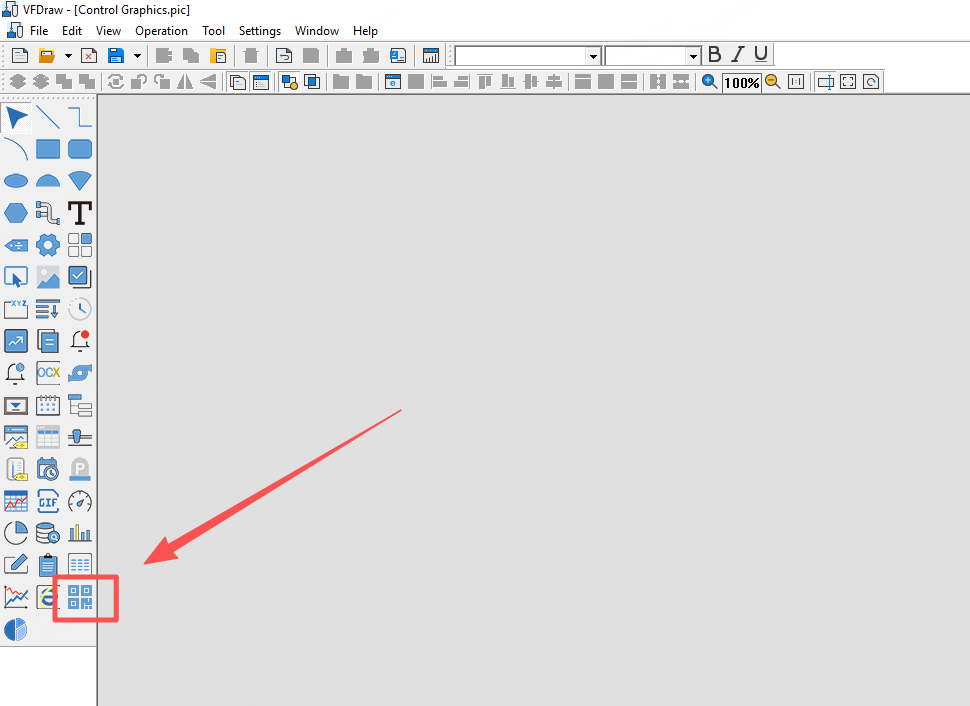
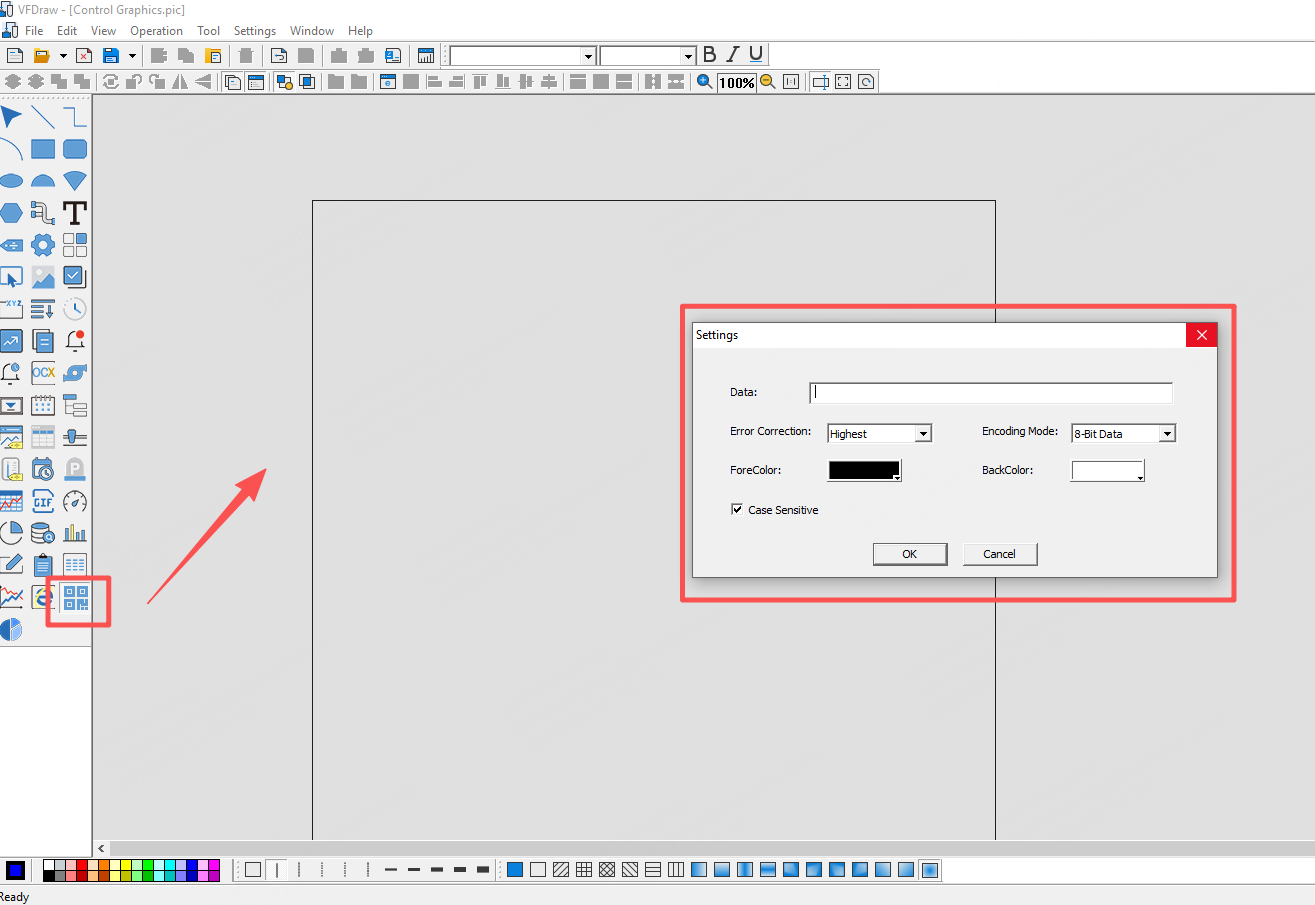
Left-click on the ‘QR Code Control’, hold down the left mouse button and drag to adjust the size of the control, then release the left mouse button to complete the creation. Double-clicking the control will open the QR Code Control Settings box.
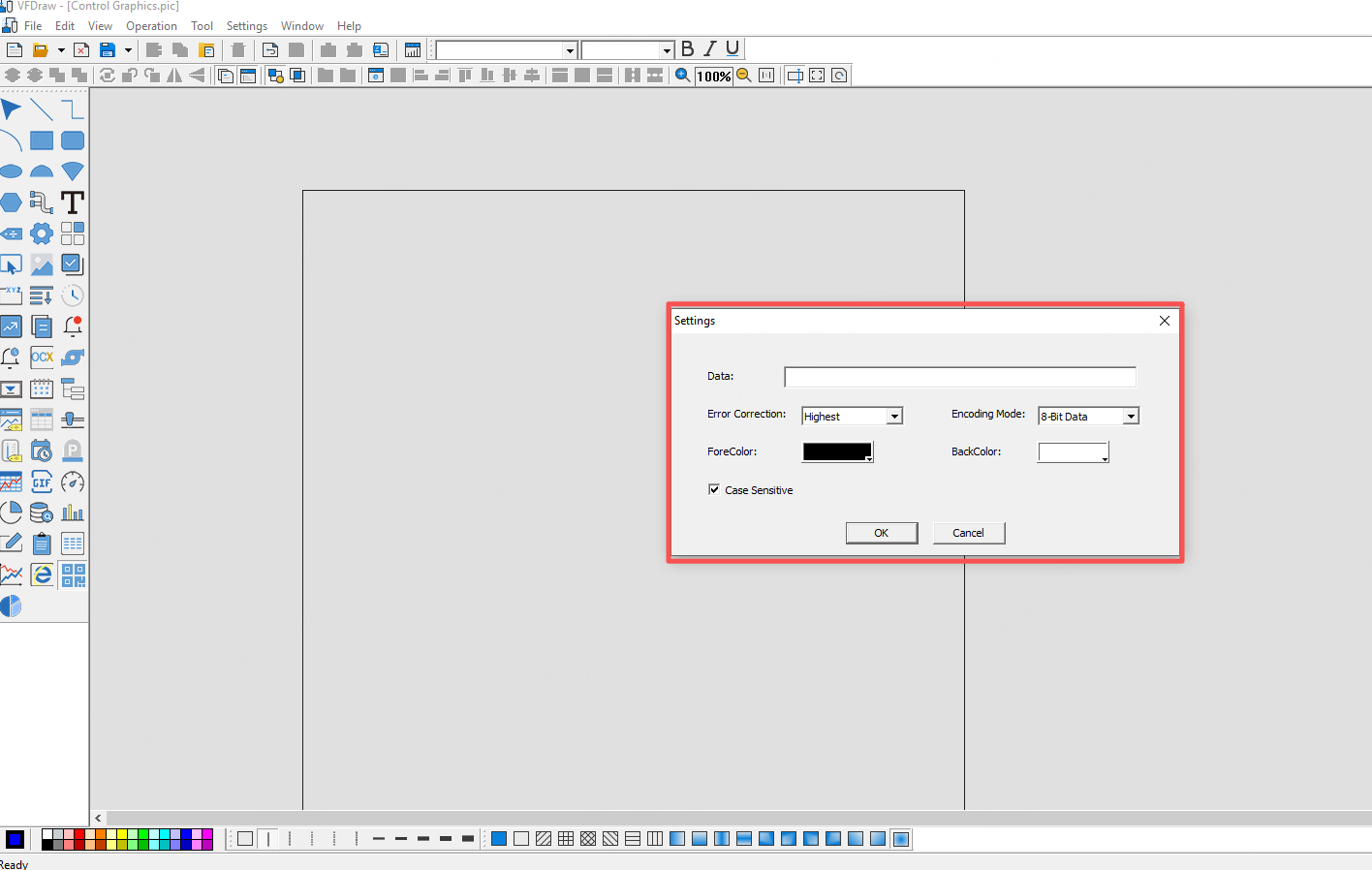
1) Data Property: Supports input of up to 1024 characters.
2) Error Correction: Low, Medium, High, or Highest.
3) Encoding Mode: 8-bit Byte or Japanese Encoding.
4) ForeColor: Default is black and can be customized as needed.
5) BackColor: Default is white and can be customized as needed.
6) Case Sensitive: Can be enabled by checking the option.
2. How to Bind Data
Method 1: Static Configuration in Process Flow Design
Applicable Scenario:
Suitable for cases where the QR code content remains fixed and does not require dynamic updates during runtime.
Steps:
1. In the process flow design editor, locate the target QR Code Control.
2. Double-click the control to open the “QR Code Control Properties” dialog box.
3. In the properties configuration window, locate the “Data” input field.
4. Enter or paste the desired QR code content directly (such as a URL, device ID, or order number).
5. Click the “OK” button to save the configuration.
6. Save the process flow screen and run the project. The QR code will be automatically generated and displayed based on the entered content.
Features:
Simple to configure and ideal for static QR codes with fixed content, such as equipment information labels or permanent links to help documents.
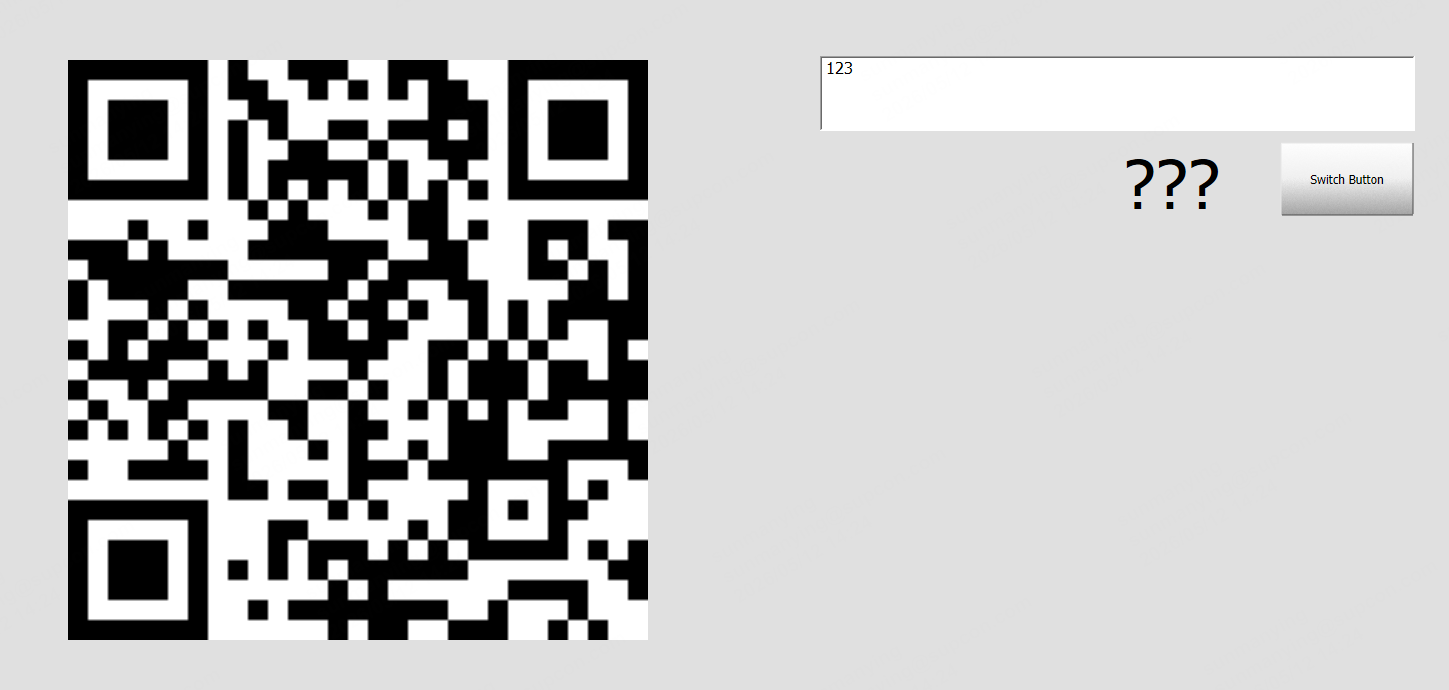
Method 2: Button-Triggered Data Writing
Applicable Scenario:
Suitable for cases where users manually enter content into an input field and dynamically update the QR code by clicking a button.
Steps:
1. Place a text input box (such as an Input control) and a button (such as a Button control) on the interface.
2. Configure the button’s “Click” event:
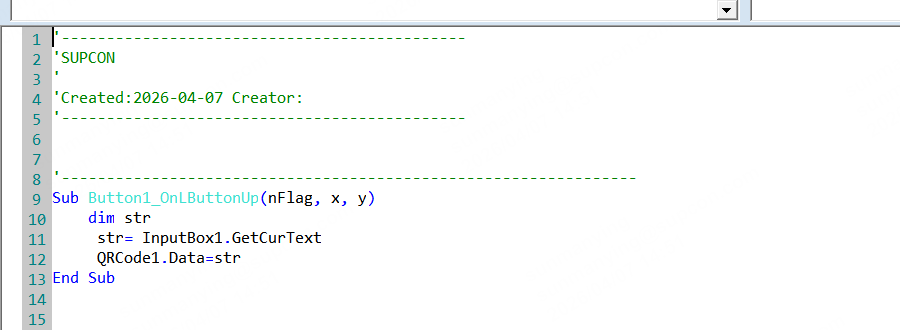
Retrieve the current text content from the input box.
Call the QR Code Control’s "Set Content” or “Write Value” method to write the retrieved text into the QR code control.
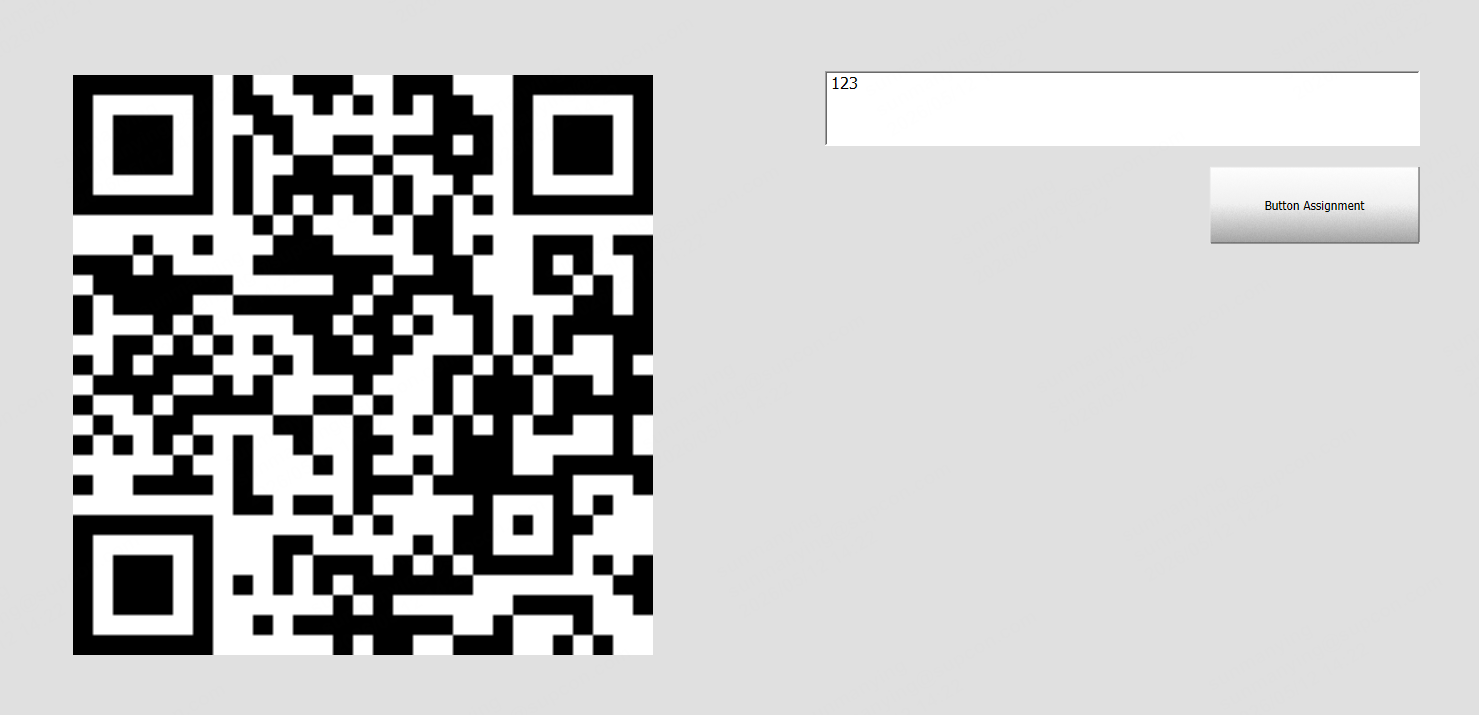
3. During runtime, users can enter any content into the input box (such as a URL, text, or serial number).
4. Click the button, and the QR code will immediately update to display the entered content.
Features:
Provides clear user interaction with manual update confirmation, making it suitable for forms, configuration pages, and other scenarios requiring user verification before updating the QR code.
Method 3: Tag Value Change Trigger (Automatic Update)
Applicable Scenario:
Suitable for scenarios where the QR code content is linked to field variables or tags and needs to update automatically whenever the tag value changes.
Steps:
1. Place text input box (such as an Input control) on the interface, and bind the QR Code Control to a Tag/Variable. When the tag value changes, the QR code content will automatically update according to the input box content.
2. Configure the tag’s “Value Change Event”:
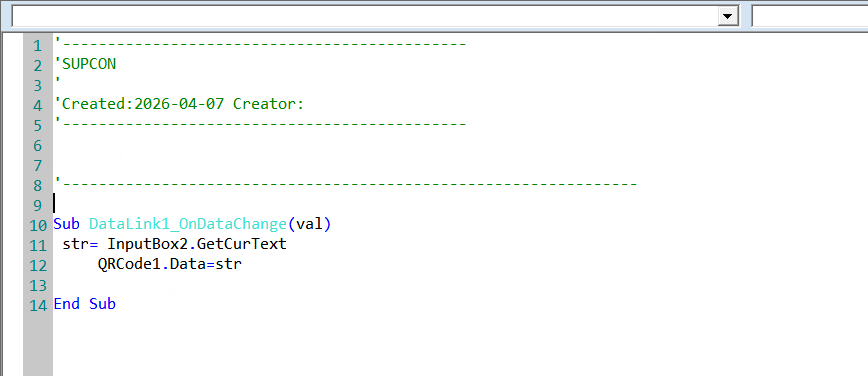
When the tag value changes, a callback is automatically triggered.
Retrieve the current text content from the input box.
Automatically update the QR code with the content from the input box.
3. During runtime, when the tag value changes due to other logic (such as equipment status updates):
The QR code content will automatically synchronize and update.
No manual button click is required.
Features:
Provides fully automatic response and is ideal for dynamic monitoring systems, such as automatically generating QR codes based on current product batch numbers, real-time equipment parameters, or dynamically generated ticket numbers.