SOLISCADA V7.70.00.01 is now available. Important Notice: License Key reactivation is required after updating. Learn what's new and update now→
 SOLISCADA at a Glance
 Architecture
 Why Choose Us
 Essential Functionalities
 Beyond the Basics
 System Recommendations
 FAQs
FAQs Oil & Gas
 Water Industry
 Food & Pharmaceuticals
 Marine
 Mining & Metal
 Manufacturing
 Electric Utilities
 Municipal Industry
Problem Description
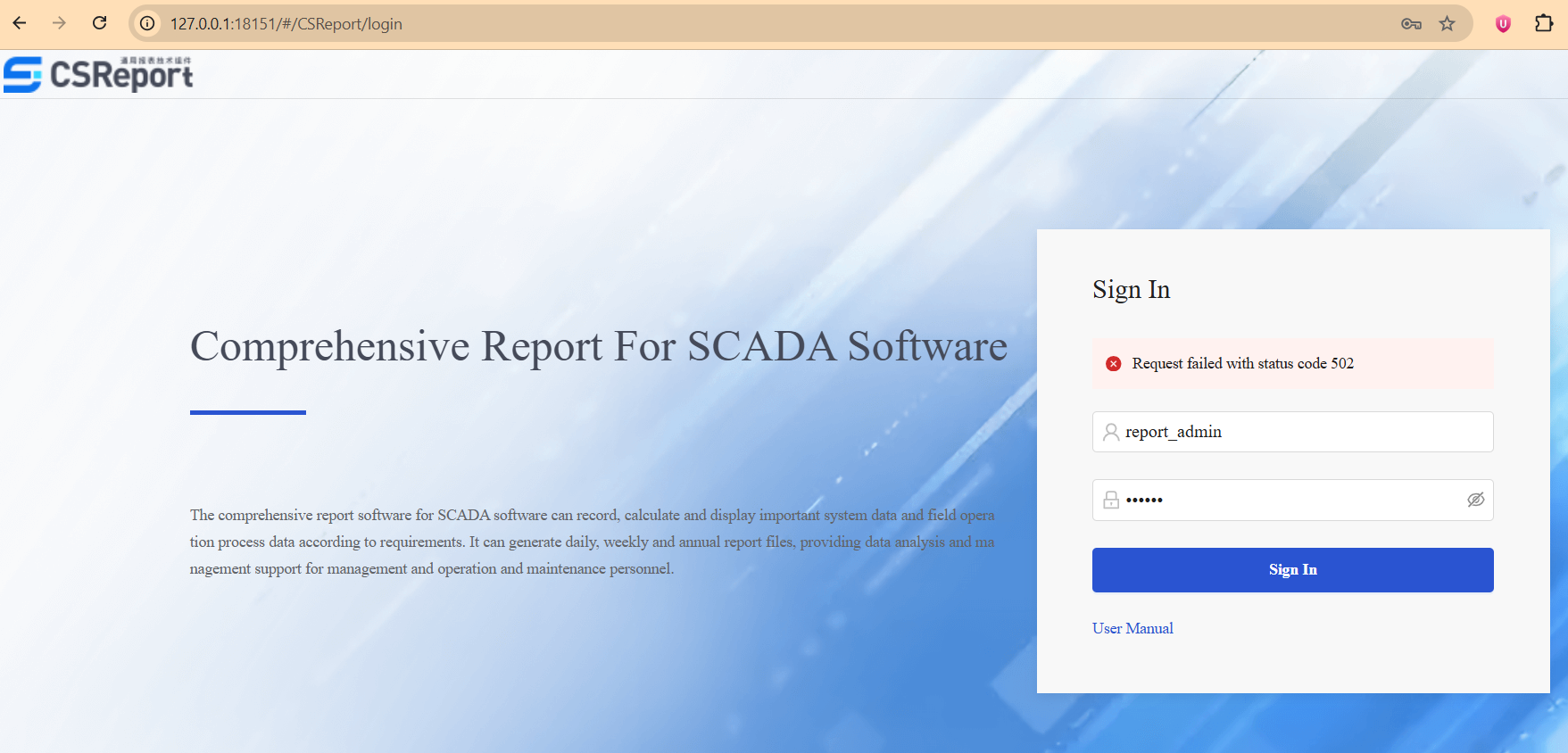
After installing the SOLISCADA CSReport, login through the browser fails and the page displays the following message:
Troubleshooting Steps
1. Check whether the CSReport service has started correctly
After the report application is installed, the system will register the report service information in Windows.
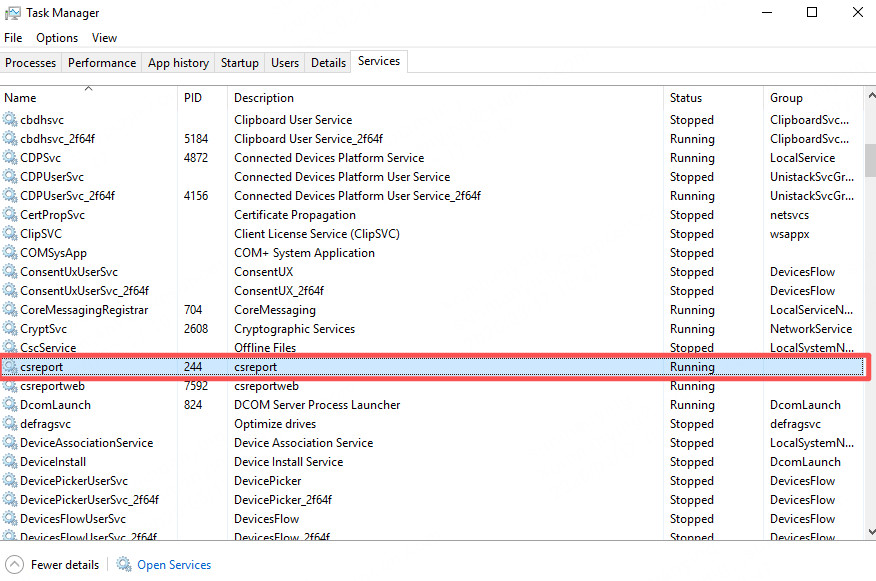
You can check the service csreport in Task Manager.
If the status shows Running, it indicates that the service has started normally.
2. Check whether the PostgreSQL database service associated with the CSReport is installed correctly and running normally
During the installation of the report application, a PostgreSQL relational database will also be installed on the server.
Check whether a PostgreSQL database already exists on the target server.
If a PostgreSQL database already exists, it must be uninstalled first, and then the report application should be reinstalled.
After the correct installation, check the running status of the PostgreSQL database and verify that it is operating properly.
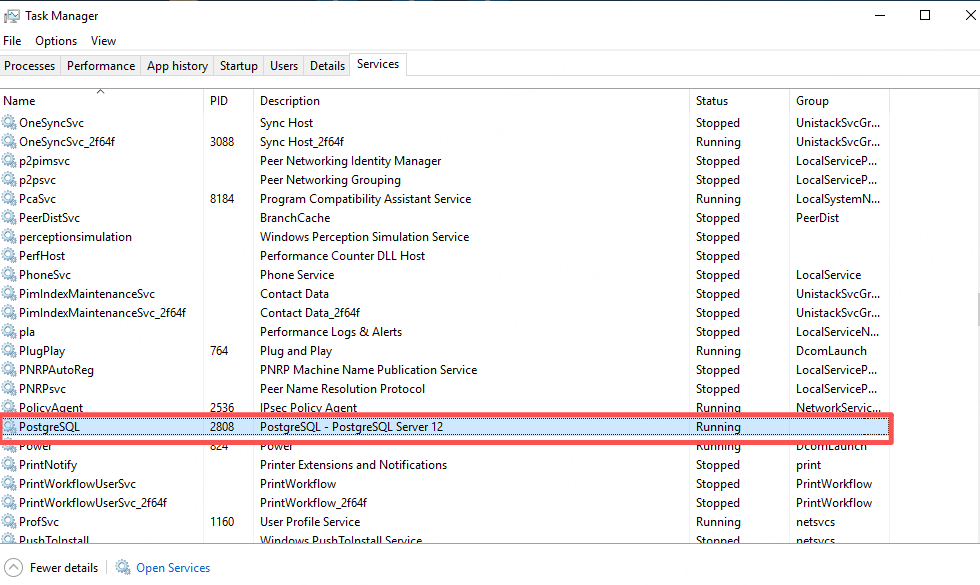
(1) Check whether the PostgreSQL database is running properly (Verify in Task Manager that PG12 is running normally.)
(2) Check whether the PostgreSQL database can be accessed properly (Use a database client such as PGAdmin, Navicat or other database clients to verify whether the database can be accessed normally.)
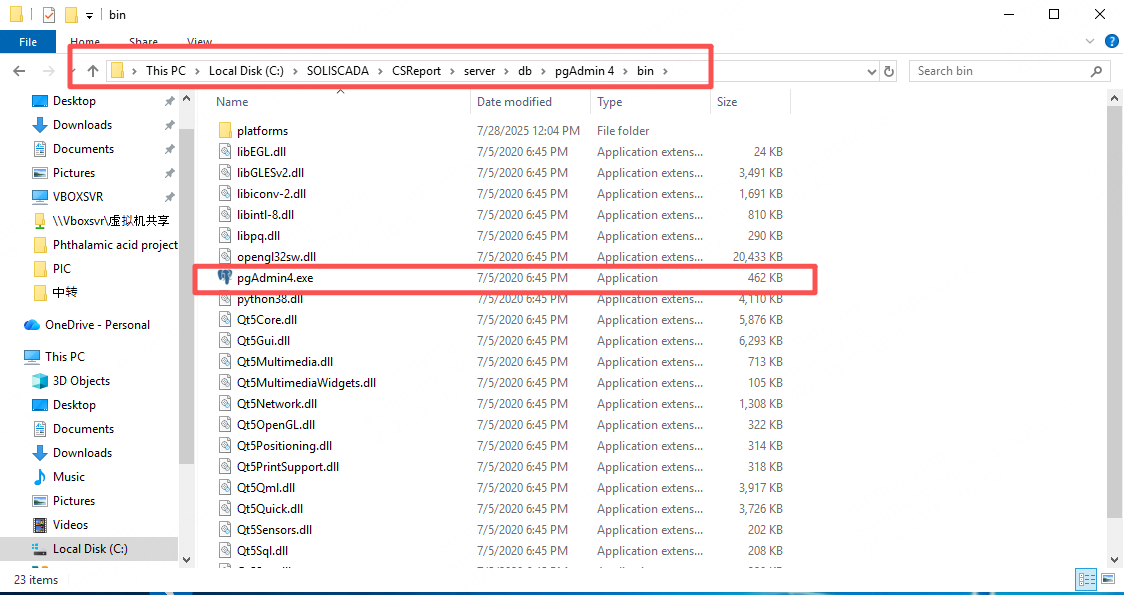
PAadmin is a web client provided with the PostgreSQL relational database.
Double-click the .exe file to start the client. The client will automatically launch the local browser and connect to the PostgreSQL database.
Use the default password “Yanfa_1304” to log in to the web page.
After logging in, check the tree structure on the left side of the interface to verify whether the csreport database can be accessed normally.
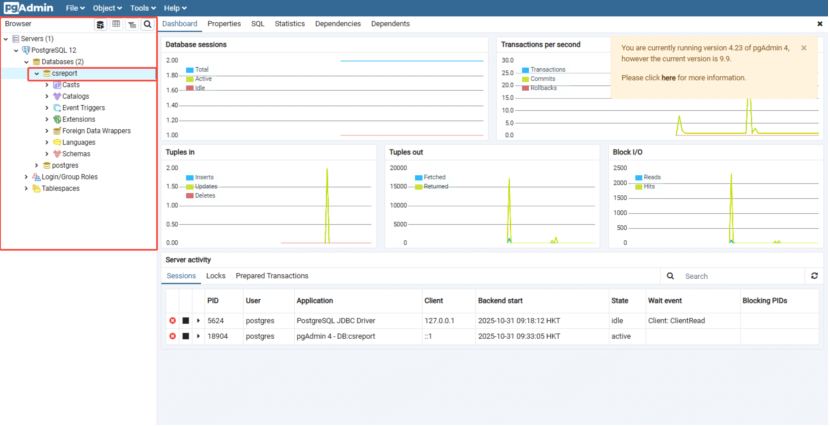
(3) If the PostgreSQL service is running but the client cannot access it and no error occurred during installation, check whether another PostgreSQL database already exists on the local machine.
Use Control Panel or Task Manager to verify whether the running PostgreSQL directory is located within the WEB report installation directory.
If the directories are different, the PostgreSQL instance is not associated with the report system.
To use the PostgreSQL database bundled with the report system, contact official technical support to update the configuration.
(4) If the PostgreSQL database is not running correctly and an error message appeared during installation, it indicates that the database installation has failed.
In this case, uninstall the report application and reinstall it. Note that uninstalling the report service does not automatically remove PostgreSQL, so PostgreSQL must be manually uninstalled from Control Panel → Programs before reinstalling the application.
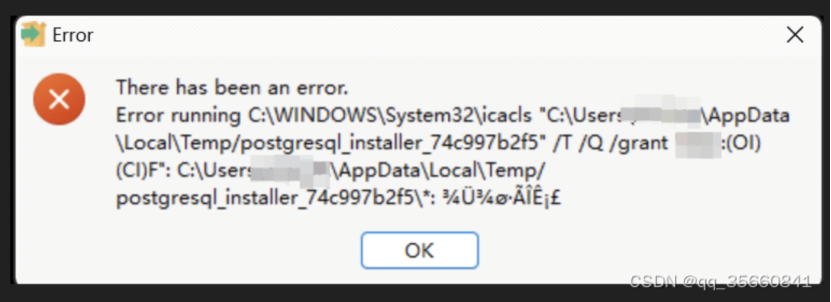
If the following error message appears during installation:
The reason may be that the Windows user folder path contains Chinese characters.
For example:
The current Windows administrator account name is in Chinese, this causes the user directory under the system to be created in Chinese. The installation program may produce garbled characters when running under a Chinese directory, resulting in installation failure.
Solution1: Log in using another administrator account with an English username, and reinstall the CS report software.
Solution 2: If there is no other account with an English or numeric username:
1) Open Settings → System
2) Check the computer name
3) Rename the Chinese folder under Users to match the computer name
4) Reinstall the report software.
3. After resolving the database issues and confirming that the database can be accessed normally through the client, open Task Manager and restart the csreport service. Once the service is running normally, refresh the browser and the CS report system can be accessed.