SOLISCADA V7.70.00.01 is now available. Important Notice: License Key reactivation is required after updating. Learn what's new and update now→
 SOLISCADA at a Glance
 Architecture
 Why Choose Us
 Essential Functionalities
 Beyond the Basics
 System Recommendations
 FAQs
FAQs Oil & Gas
 Water Industry
 Food & Pharmaceuticals
 Marine
 Mining & Metal
 Manufacturing
 Electric Utilities
 Municipal Industry
In modern SCADA systems, clear separation of engineering and runtime permissions is essential for security, operability, and auditability. This article explains how SOLISCADA divides engineer/project permissions from operator/runtime permissions, how to configure engineer groups and data-group access, and what to do when passwords are forgotten. This technical guide is intended for system integrators, SCADA administrators, and plant engineers.
SOLISCADA's SCADA permission management is divided into two main parts:
Engineer (project) management permissions: for engineers who configure projects.
Monitoring/runtime operator permissions: for operation and maintenance personnel who run and interact with the system.
1. Engineer Permission Management
In the system-structure configuration software, engineer permissions are divided into two categories:
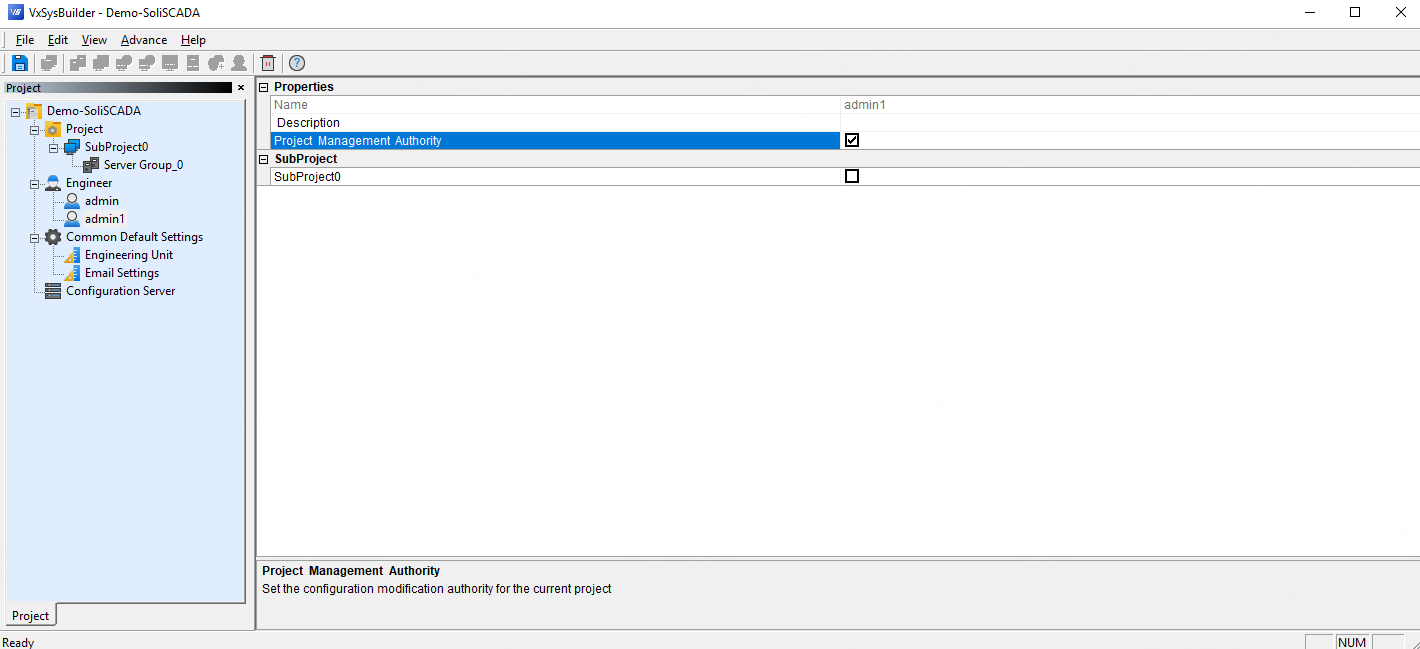
Project management permissions: permission to modify project attributes or the network architecture within the system-structure configuration software.
Sub-project configuration permissions: permission to open, configure, publish, and close sub-projects within the configuration management software.
These two types of permissions are independent: an engineer with project management permission does not necessarily have sub-project configuration permission, and vice versa.
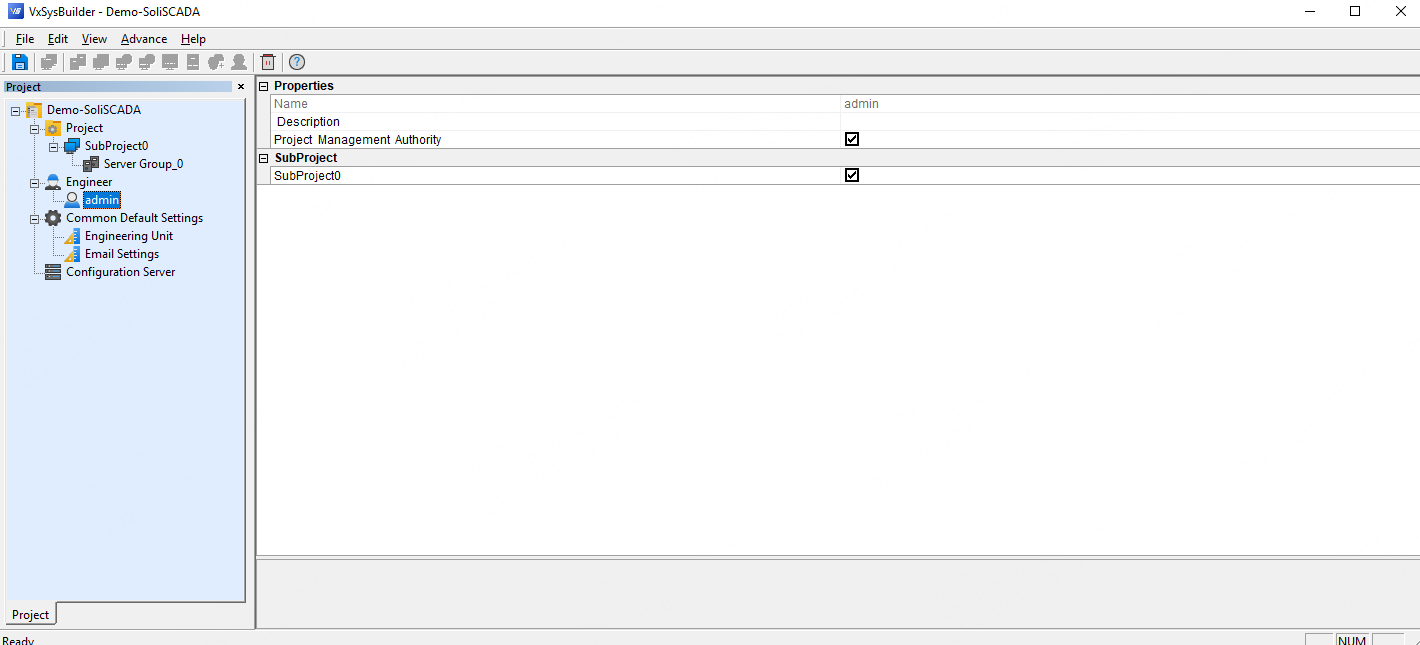
An engineer who has project management permission can set sub-project configuration permissions for all engineers within the system-structure configuration software.
When creating a project, you must specify the project name and the creator. This creator is designated as the project creator. The creator is also an engineer; they will automatically be added under the engineers node and will have project management permissions by default.

Note: Each project must have at least one engineer who has project management permissions.
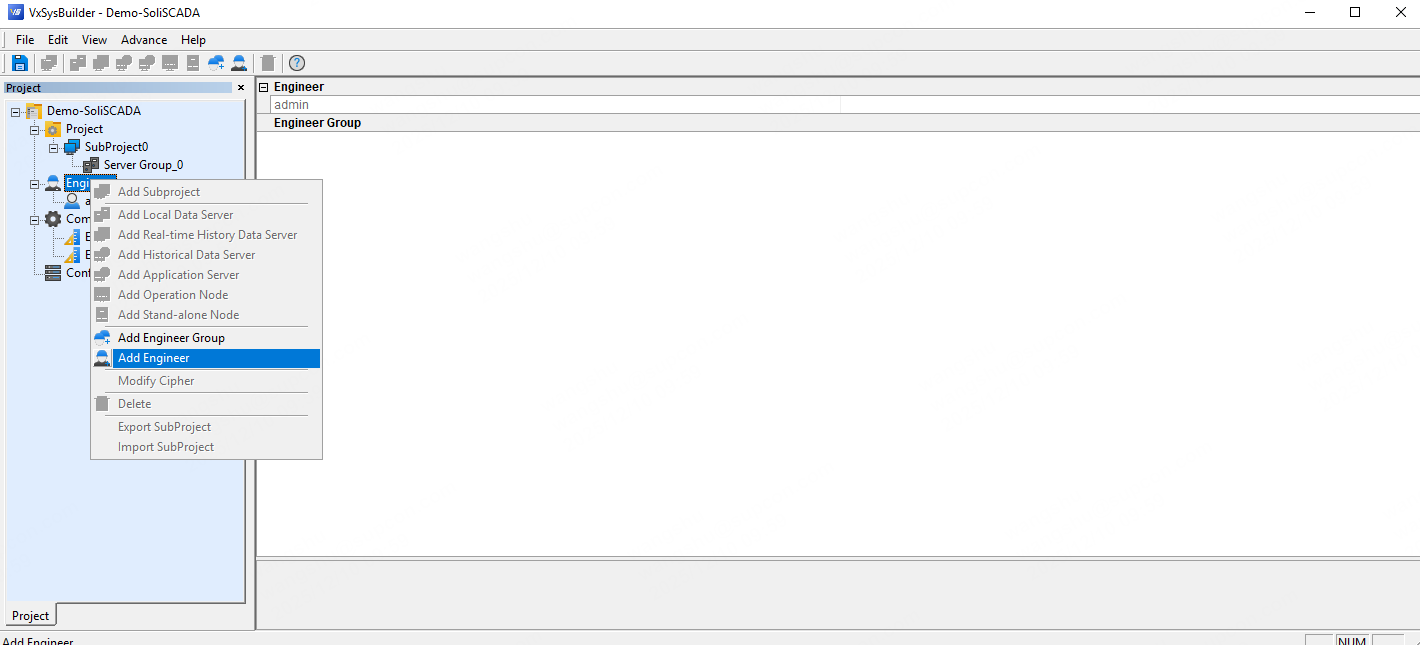
1.1 Add an Engineer or Engineer Group
A single project can have multiple engineers who manage the project and its sub-projects. Engineers can be password-protected.
Engineers with the same permissions are recommended to be grouped as an engineer group for unified permission configuration. Characteristics of an engineer group:
Engineers within the same group have identical permissions.
Engineers inside the group have no difference in configuration management compared to engineers outside the group (i.e., groups do not change behavior beyond permission assignment).
1.2 Assign Permissions
Assign either Project Management Permission or Sub-project Configuration Permission to engineers you have added.
1.3 Change Password
Select the engineer whose password you want to change, right-click, and choose Change Password.

2. Monitoring/Runtime User Permissions
The monitoring user authorization tool is used to configure and maintain operational personnel and grant them the appropriate operational permissions.
The software has two built-in users: Admin (level “Privileged+”) and Observer (level “Observer”). These two users cannot be deleted, nor can their permissions be reconfigured.
When the monitoring/runtime client starts, the default logged-in user is Observer, who has no operation permissions. Users with operation permissions must log in.
Permission levels (from highest to lowest):
Privileged+ > Privileged > Privileged- > Engineer+ > Engineer > Engineer- > Operator+ > Operator > Operator- > Observer.
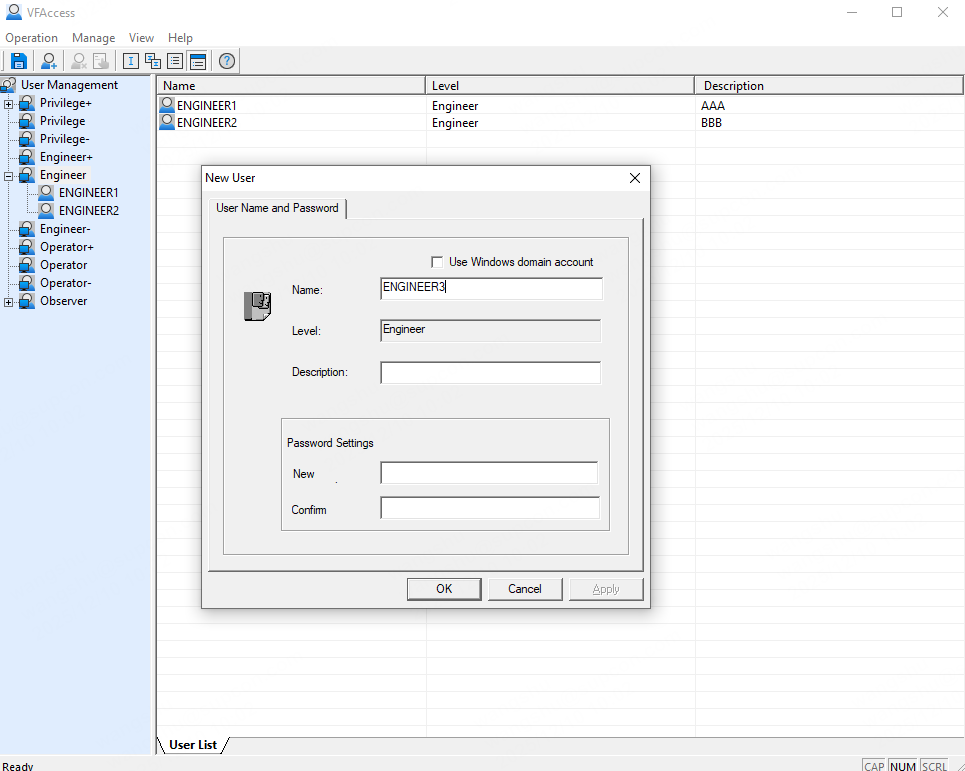
2.1 Add User
Right-click (except on the built-in “Privileged+” and “Observer” users) to create a new user. You can then set the username, user description, and password information.
2.2 Assign Permissions
Select any user (other than the built-in users) in the user list tree on the left side of the UI. In the right side information display area, at the bottom, four tabs will appear: User List, Data Grouping, Monitoring Operation Permissions, and Operation Groups.

2.2.1 Data Grouping
Choose whether the user has operation permissions on the points (tags) under a given group.
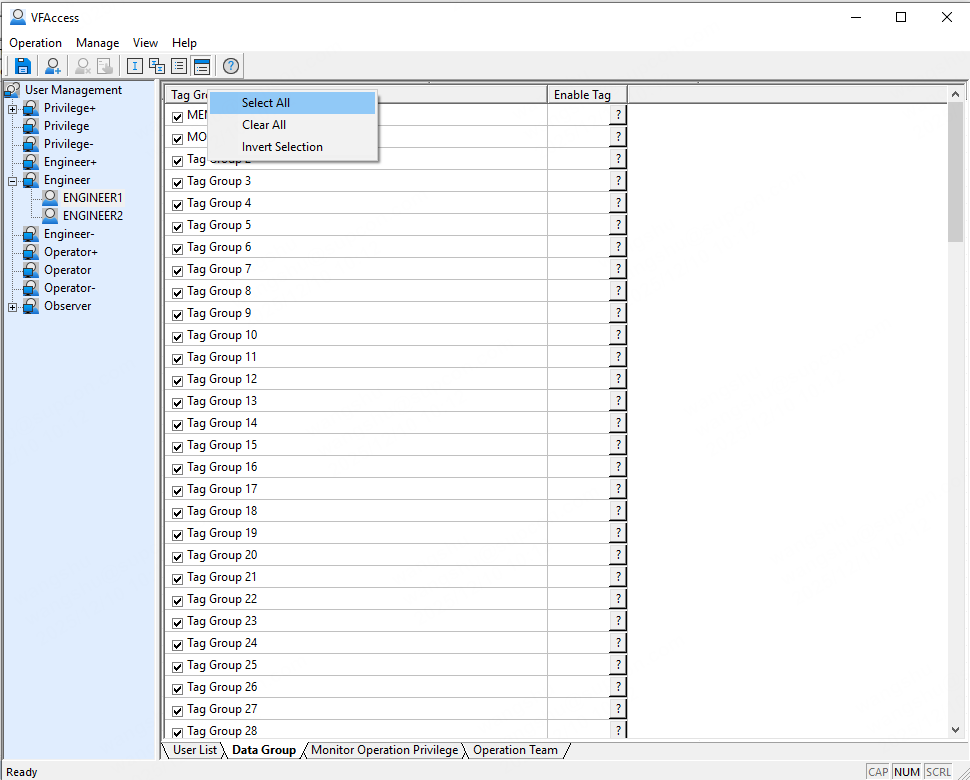
When a point group is checked, the user has read/write operation permission for that group's points.
The enable point (enable tag) left blank defaults to enabled.
Enable point requirements:
The enable point must be a digital (Boolean) point:
If the enable point value is ON, the user may operate the points in that group.
If the enable point value is OFF, the user may not operate the points in that group.
If the enable point is set to an analog point, the enable setting is invalid.
2.2.2 Monitoring Operation Permissions
Assign monitoring operation permissions to the user. Only permission items selected here will be available to that user in the monitoring client.
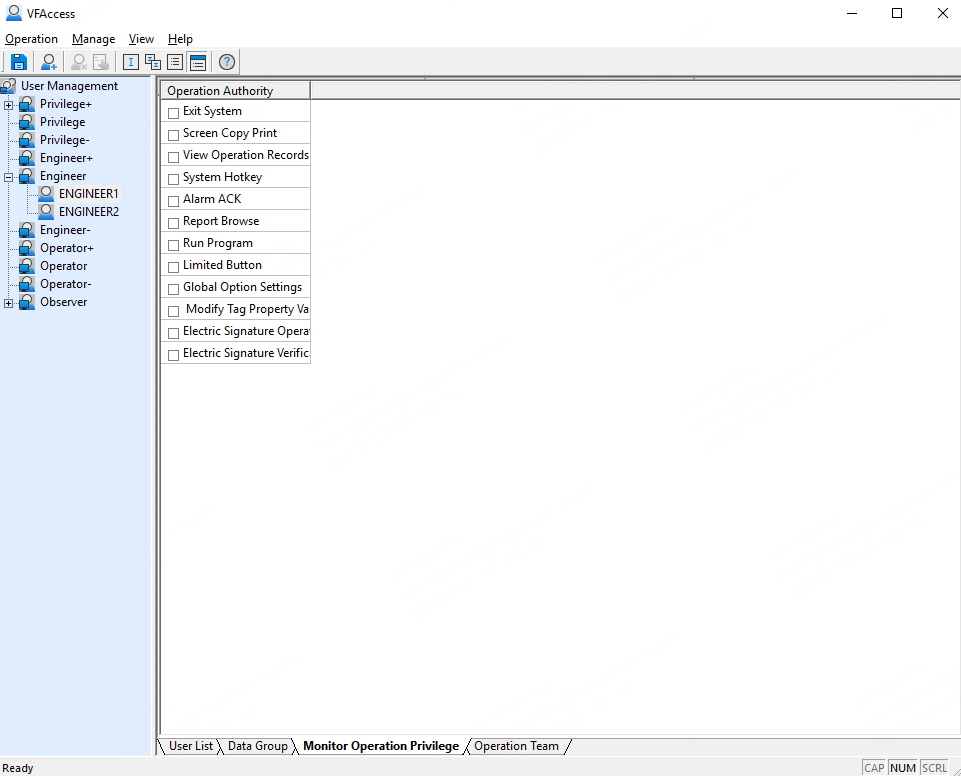
Exit system: exit the monitoring runtime.
Screen copy / print: print the current screen.
View operation logs: view operation logs.
System hotkeys: users without system hotkey permission will have system hotkeys (Ctrl+Alt+Del, Ctrl+Esc, Alt+Tab, Alt+Esc, Alt+F4, Win key) disabled while monitoring is running.
Alarm acknowledge: users without alarm-acknowledge permission cannot use the individual alarm acknowledge or acknowledge current page buttons on the alarm overview interface.
Report browse: browse production reports.
Run external program: buttons → dynamic → run other program.
Restricted button permission: if a user lacks restricted button permission, the restricted button appears greyed out and is not operational in the monitoring client.
Global option settings: if a user lacks global option configuration permission, the option buttons in the system information settings interface are greyed out and not operational.
Online modify point domain: if a user lacks the permission to modify point domain online, attempting to modify point domain attributes during monitoring will pop up a prompt informing the user they do not have permission.
2.2.3 Operation Group Permissions
Assign which operation groups the user may log into within the monitoring client.

3. What if a Password is Forgotten?
3.1 Engineers
If an engineer forgets their password, contact us at soliscada@supcon.com to reset the password.
3.2 Monitoring / Runtime Users
If a monitoring/runtime user forgets their password, an engineer can right-click to change the user password in the user permission configuration. After changing the password, republish (re-deploy) the project for the change to take effect.